Profile
Who you are, as your customers see it.
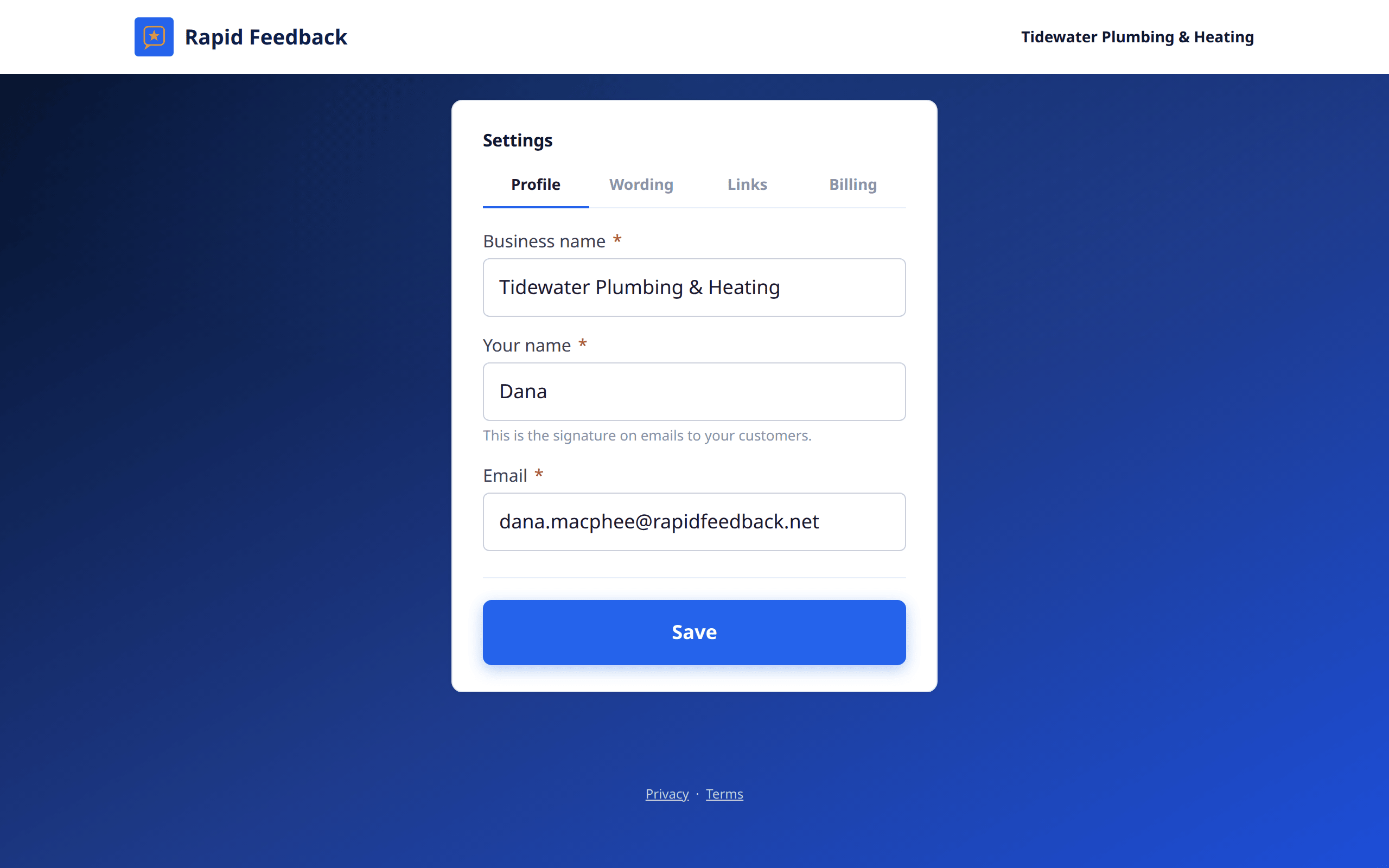
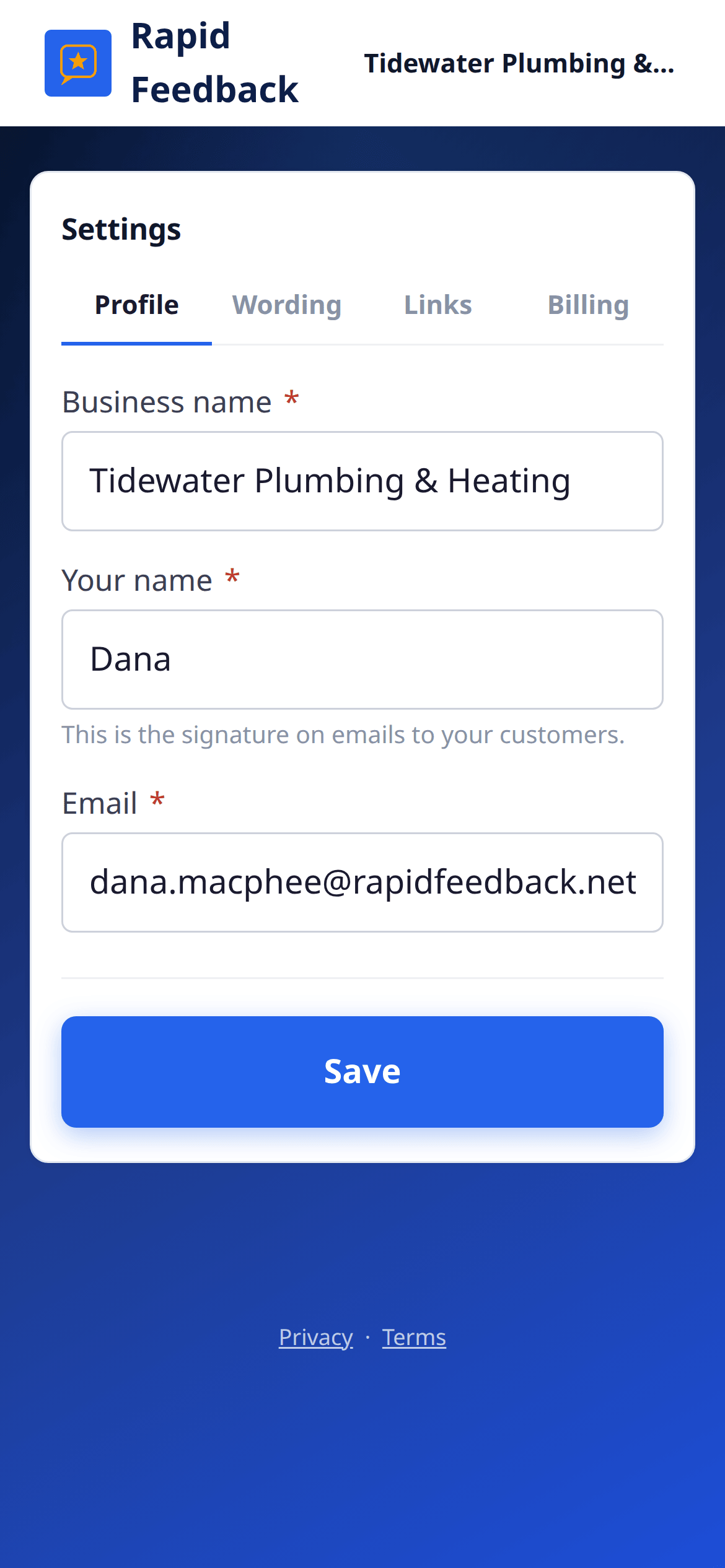
Business name
Shown at the bottom of every feedback request and on your customers' rating page. Use the name your customers know you by.
Your name
"This is the signature on emails to your customers." A first name feels friendliest: "Thanks, Dana".
Email
The address where we send feedback, sign-in links and account emails. It's also how we know it's you.
Changing your email
To keep your account safe, a new address has to be confirmed from its own inbox.
- Type the new address in Email and press Save.
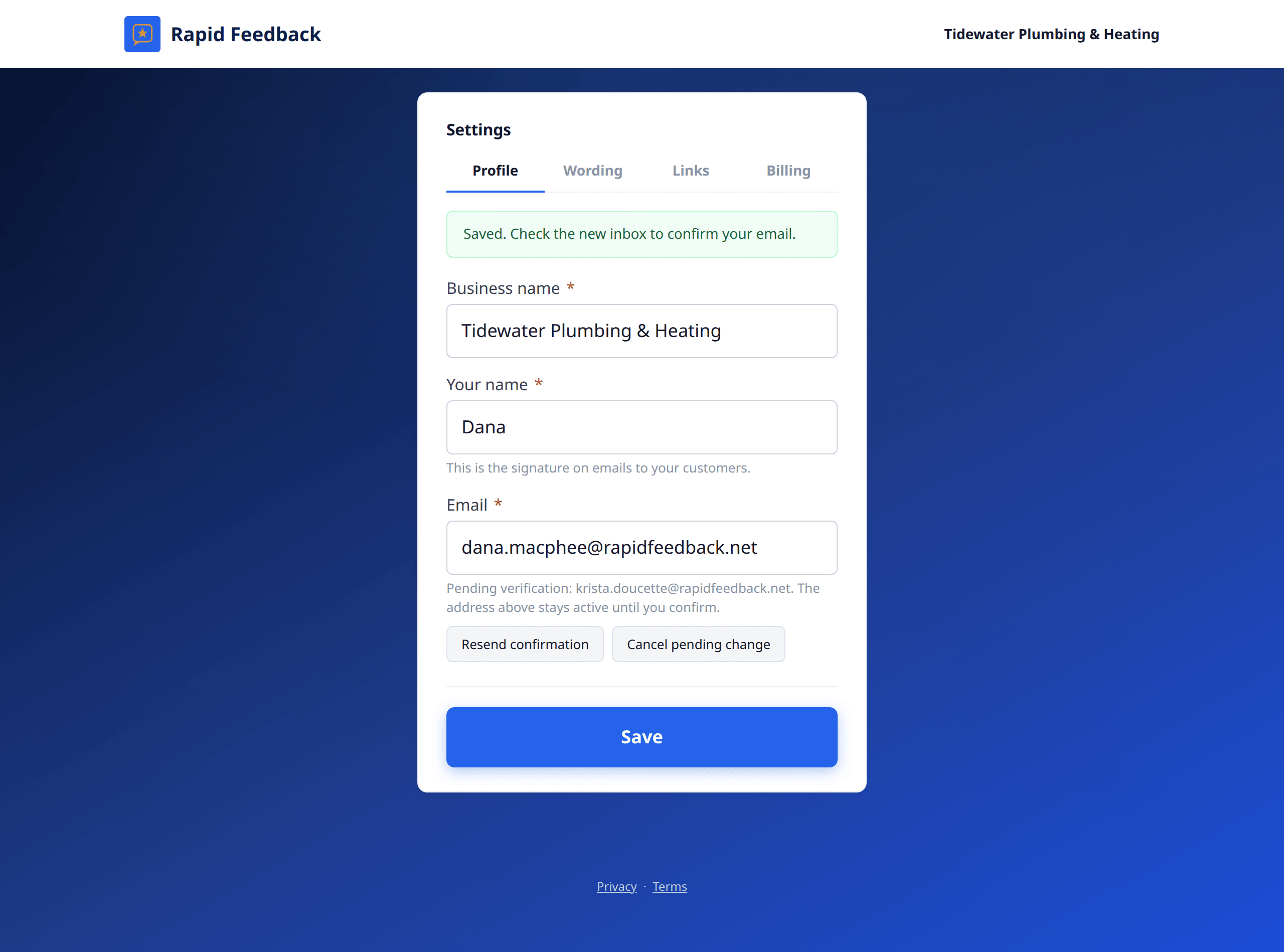
- You'll see Saved. Check the new inbox to confirm your email.
- Open the email "[your business], Confirm your new Rapid Feedback email" in the new inbox and click the link.
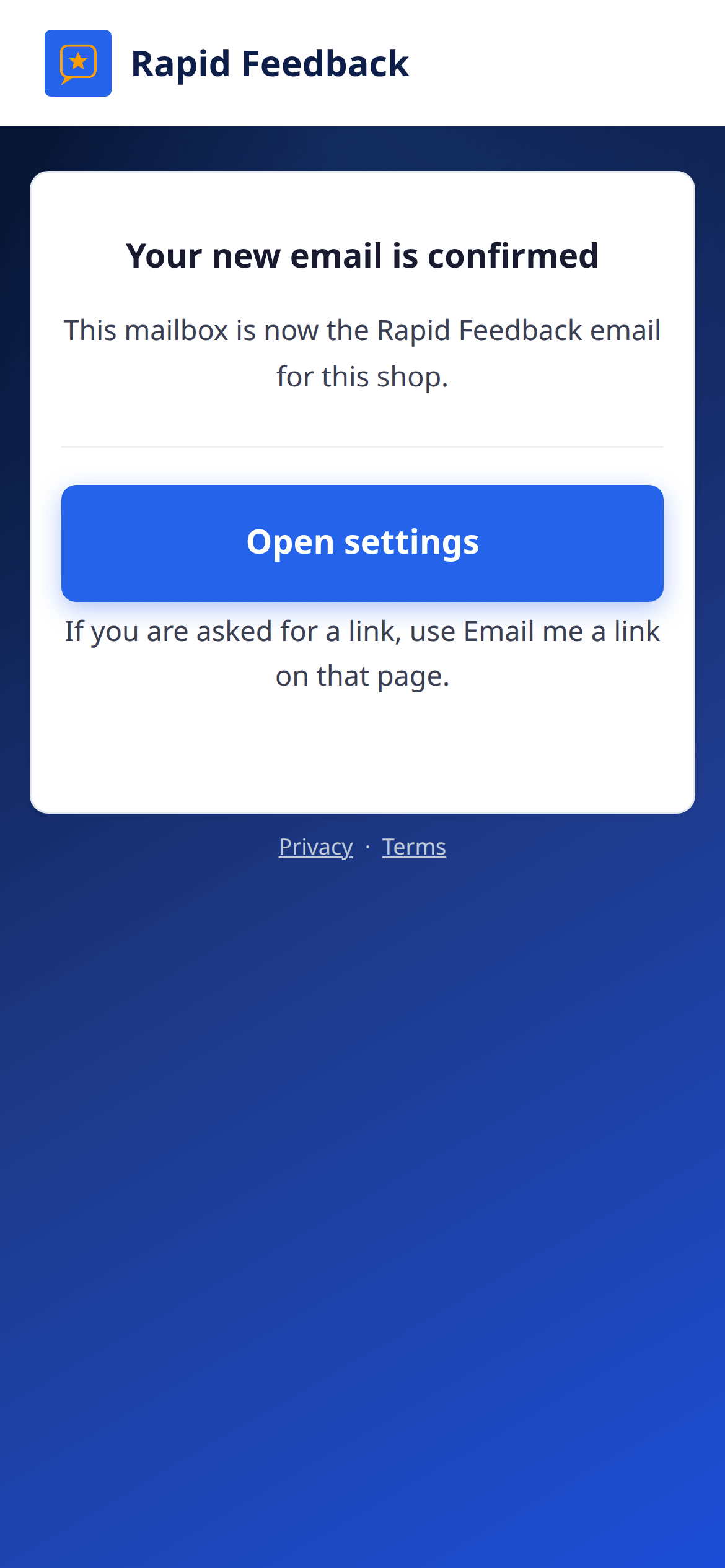
- You'll see Your new email is confirmed. From now on, everything goes to the new address.
Until you confirm, your old address keeps working. The Profile tab shows "Pending verification: [new address]. The address above stays active until you confirm." with two buttons:
- Resend confirmation, if the email didn't arrive.
- Cancel pending change, if you changed your mind.
After the change, we also send a short notice to your old address, "Your Rapid Feedback email address was changed", so you'd know if someone else did it.
Good to know
Changing your email signs settings out on every device, as a safety step. Use Email me a link to sign in again. If you'd turned off any of our emails before, changing your address turns them back on for the new one.