Every email, explained
Every email Rapid Feedback might send you, what it means, and whether you need to do anything.
"[your business]" is your business name and "[Customer]" is your customer's first name.
Account emails, from account@
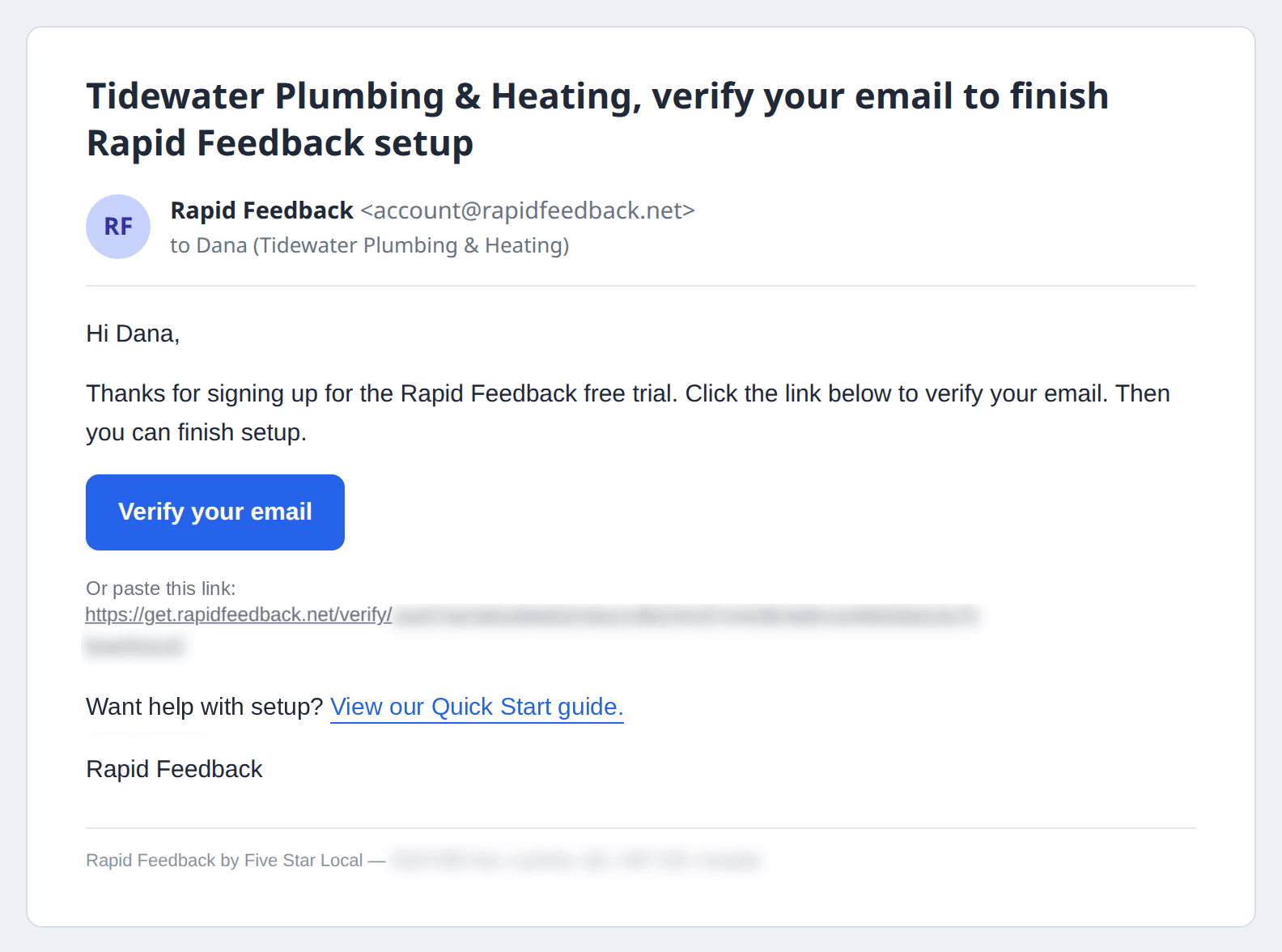
Verify your email
Subject: [your business], verify your email to finish Rapid Feedback setup
When: Right after you sign up.
What to do: Click Verify your email to continue setup. The grey Or paste this link line is the same link. View our Quick Start guide opens the Quick Start. If you asked for a new one, use the newest email.
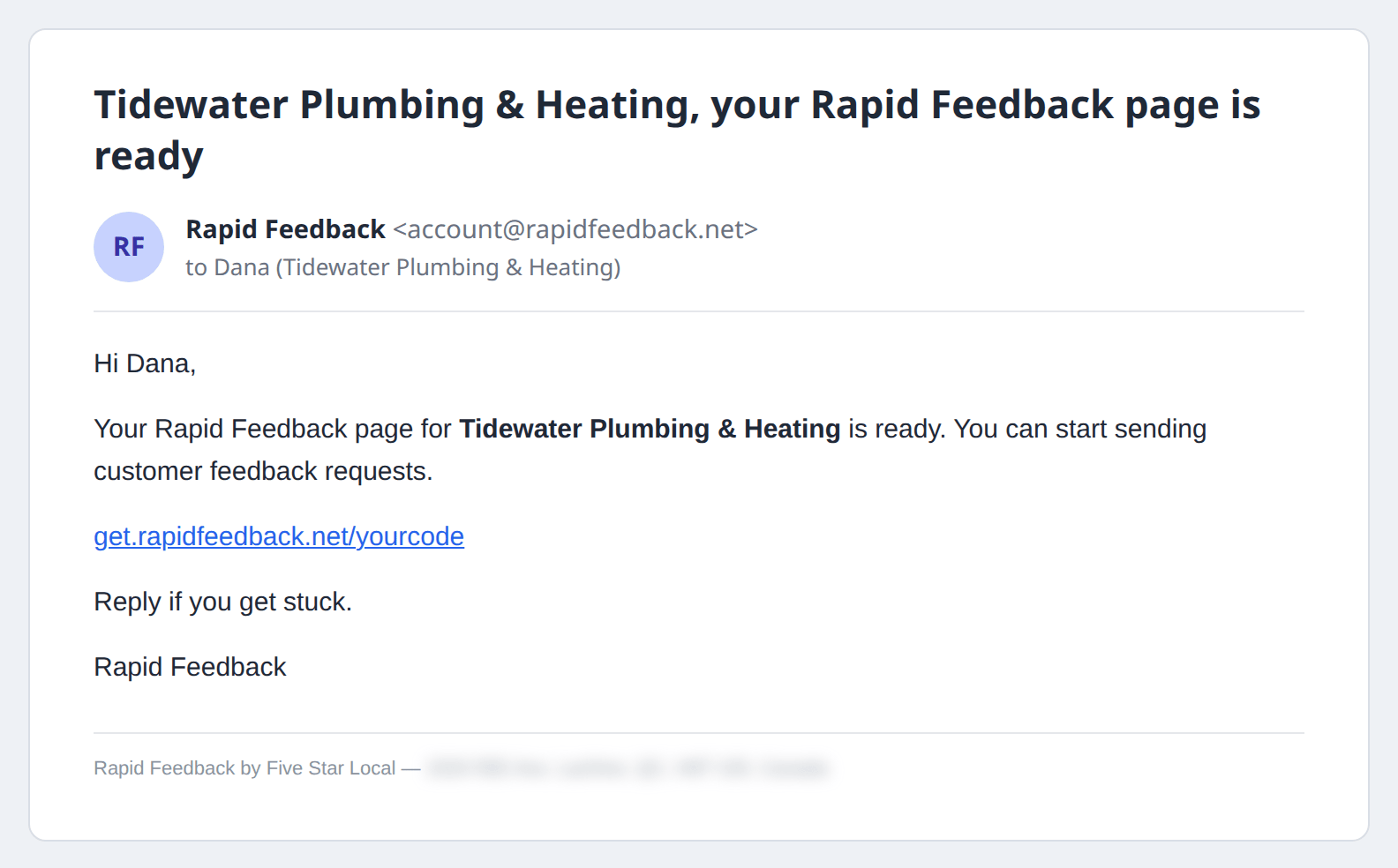
Your page is ready
Subject: [your business], your Rapid Feedback page is ready
When: When you finish setup.
What to do: Keep it. It has the link to your sending page. Reply if you get stuck.
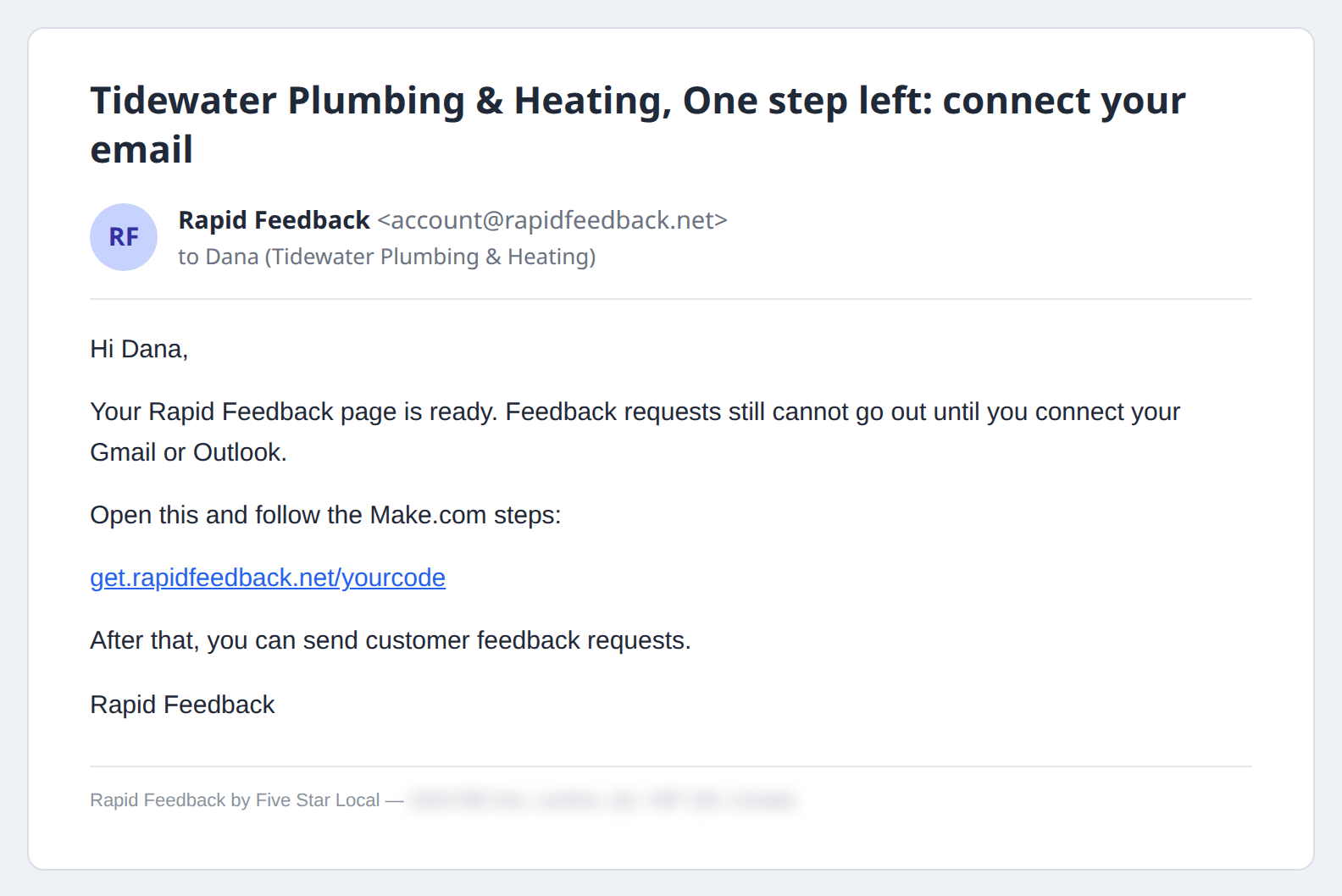
Open your settings
Subject: [your business], Open your Rapid Feedback settings
When: When you press Email me a link on the settings page.
What to do: Click the link within 10 minutes. Didn't ask for it? You can ignore it. Nobody gets in without the link.
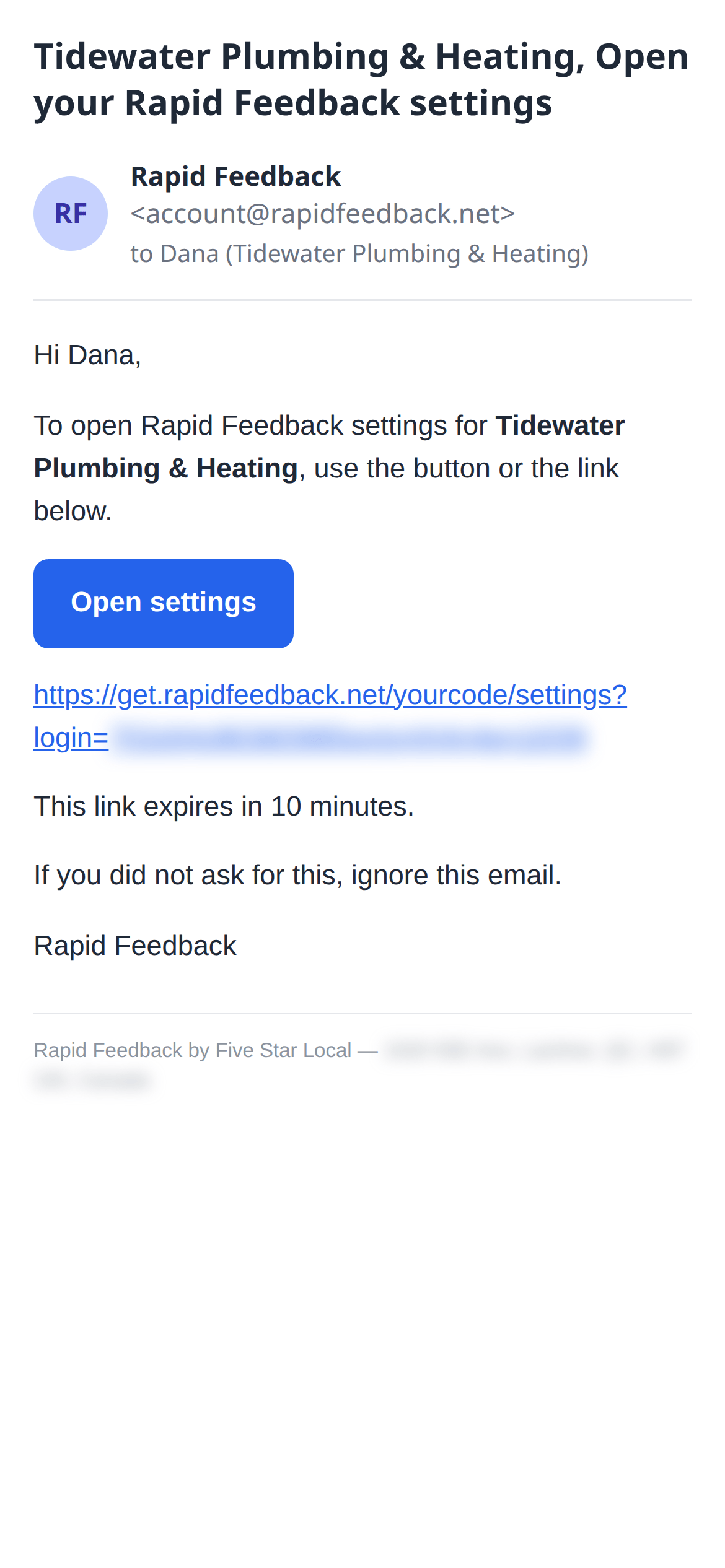
Confirm your new email
Subject: [your business], Confirm your new Rapid Feedback email
When: You changed your email in Profile. It goes to the new address.
What to do: Click the link to finish the change.
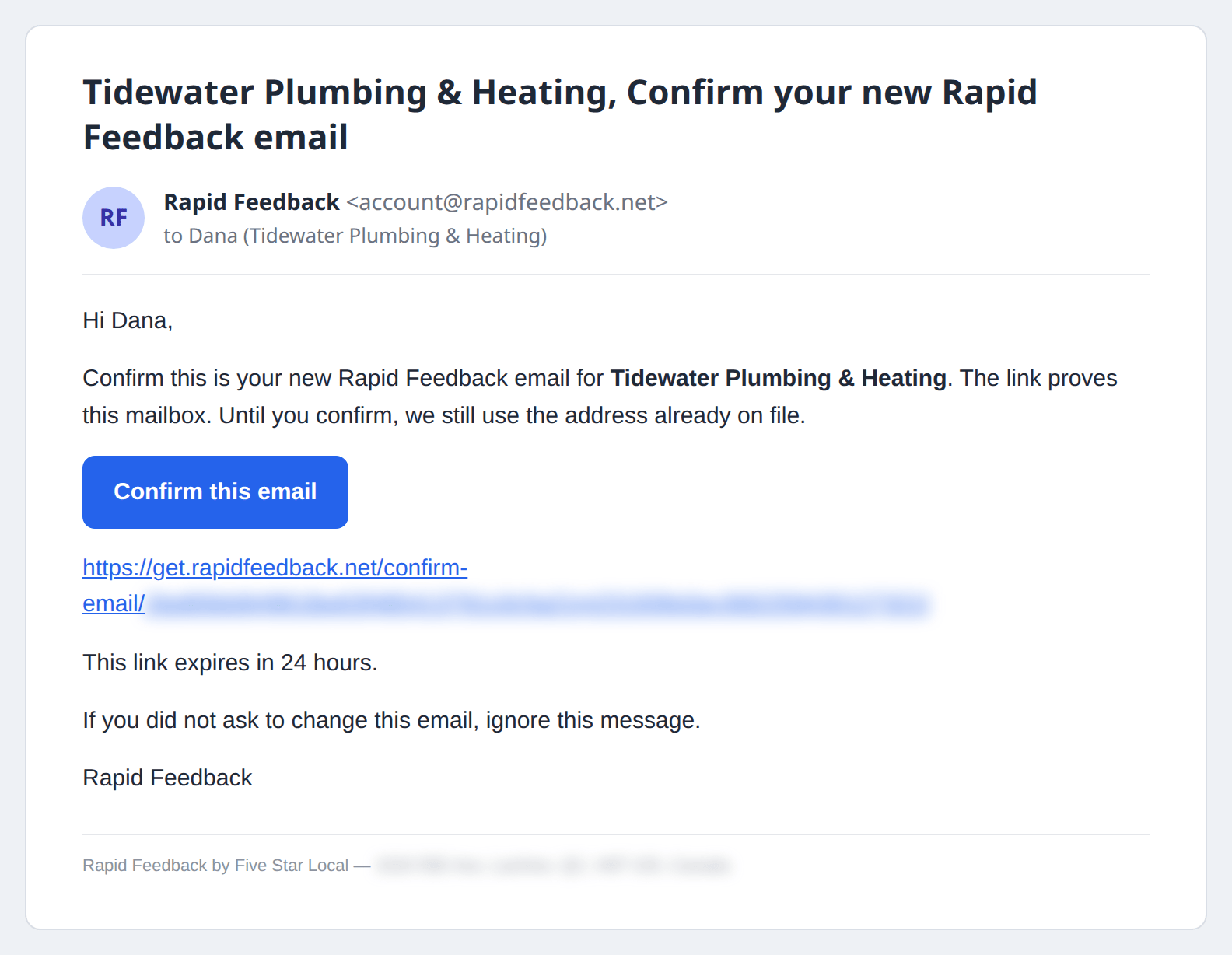
Your email address was changed
Subject: Your Rapid Feedback email address was changed
When: Right after an email change. It goes to the old address.
What to do: Nothing, if it was you. If it wasn't, email hello@rapidfeedback.net right away.
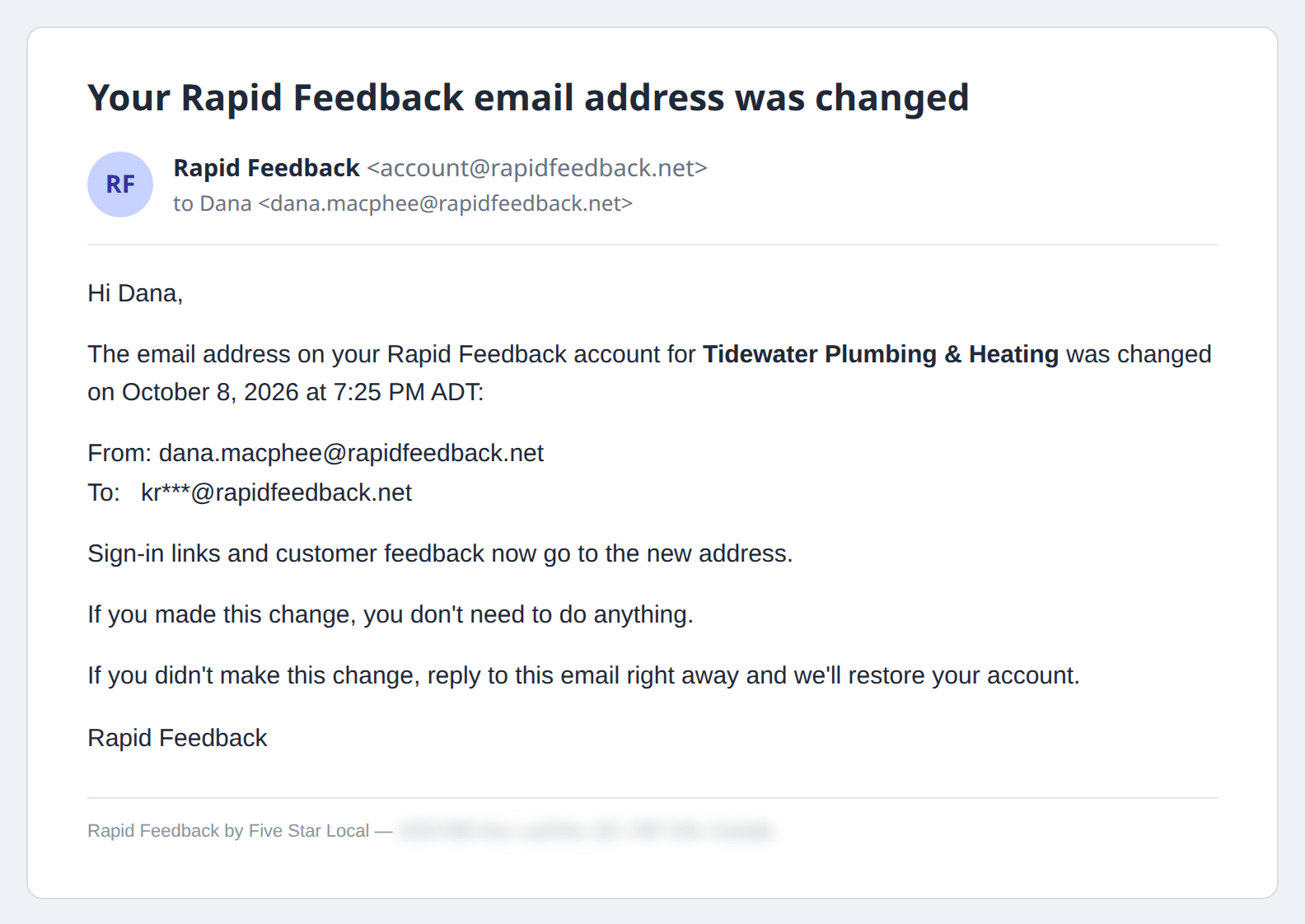
One step left (setup check)
Subject: one of:
- [your business], One step left: connect your email
- [your business], One step left: add your Google review link
- [your business], Finish setup so you can send feedback requests
When: Two days after you verify, only if setup isn't finished.
What to do: Use the link in the email to pick up where you left off. See the Quick Start.
Feedback emails, from feedback@
The sender name is your customer's first name, like "Elaine via Rapid Feedback". Reply goes to your customer.
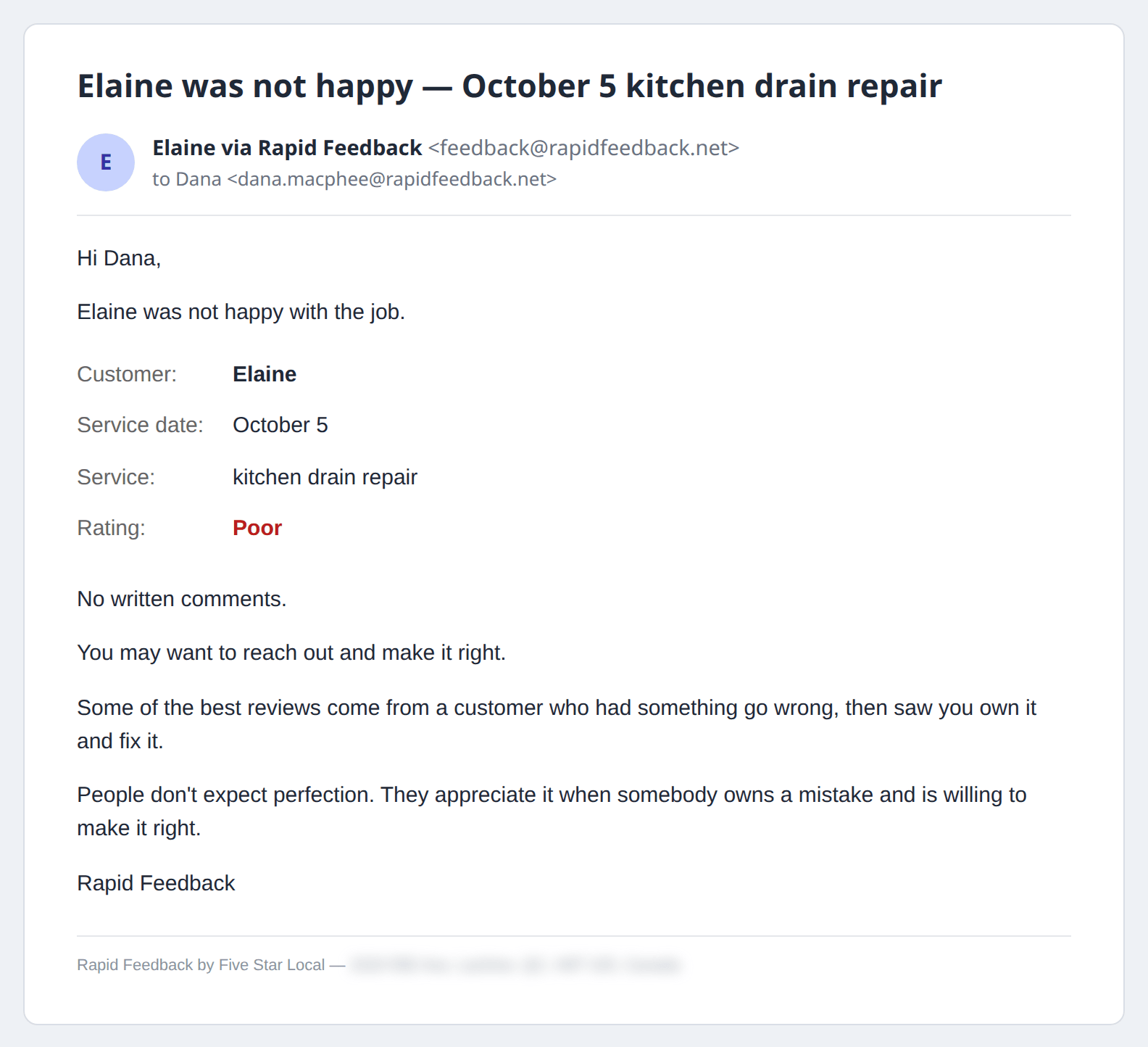
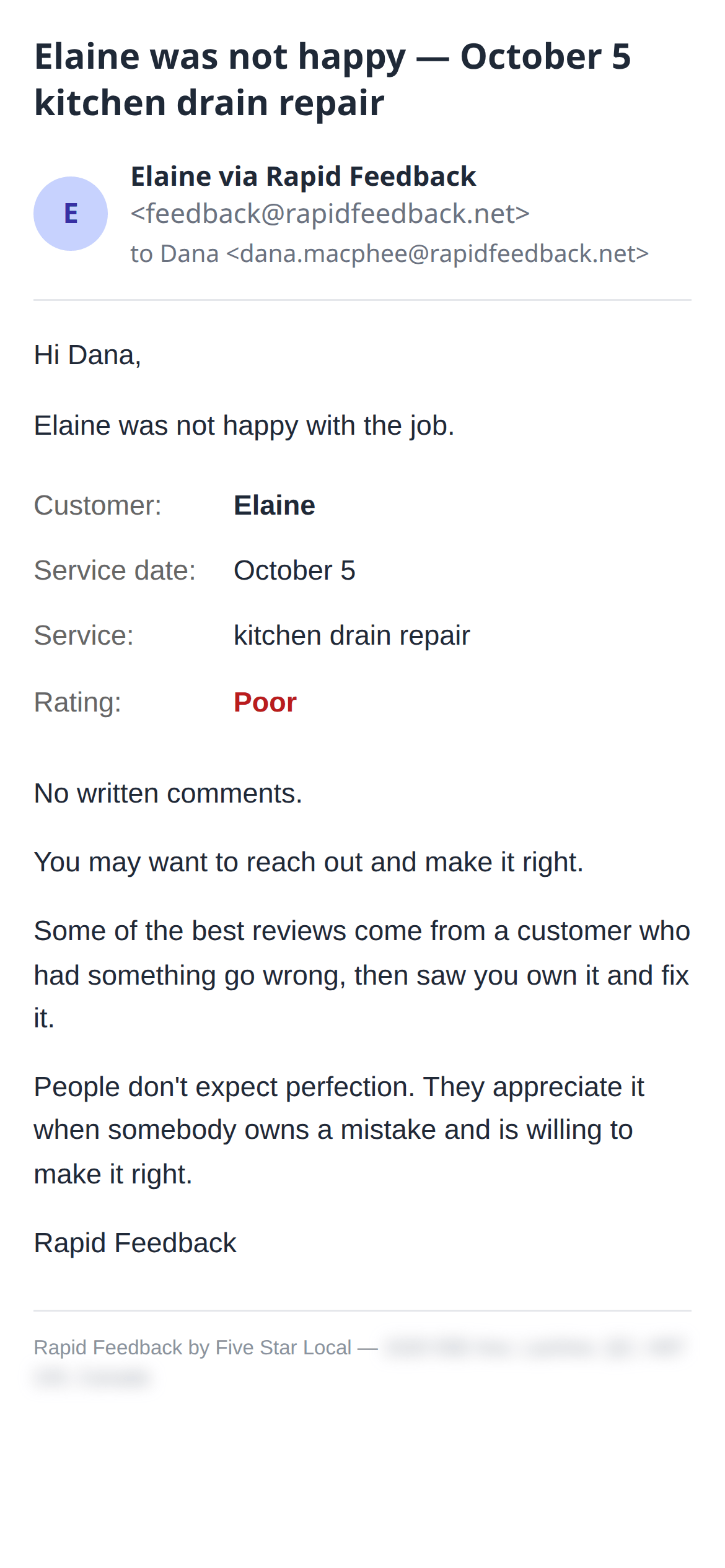
[Customer] was not happy
Subject: [Customer] was not happy — [date] [job]
When: Right after a customer rates Poor or Very poor.
What to do: Reach out. See When a customer isn't happy.
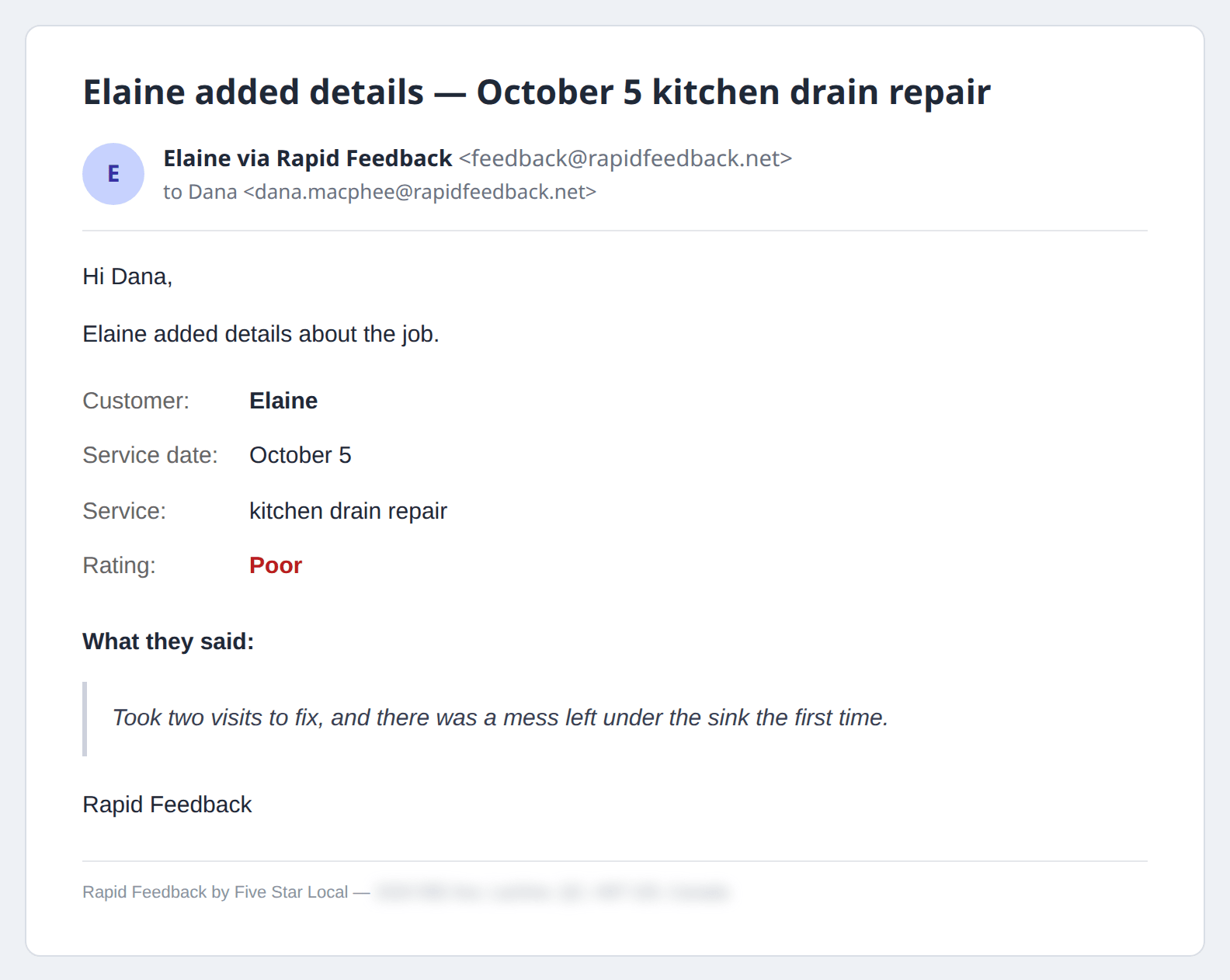
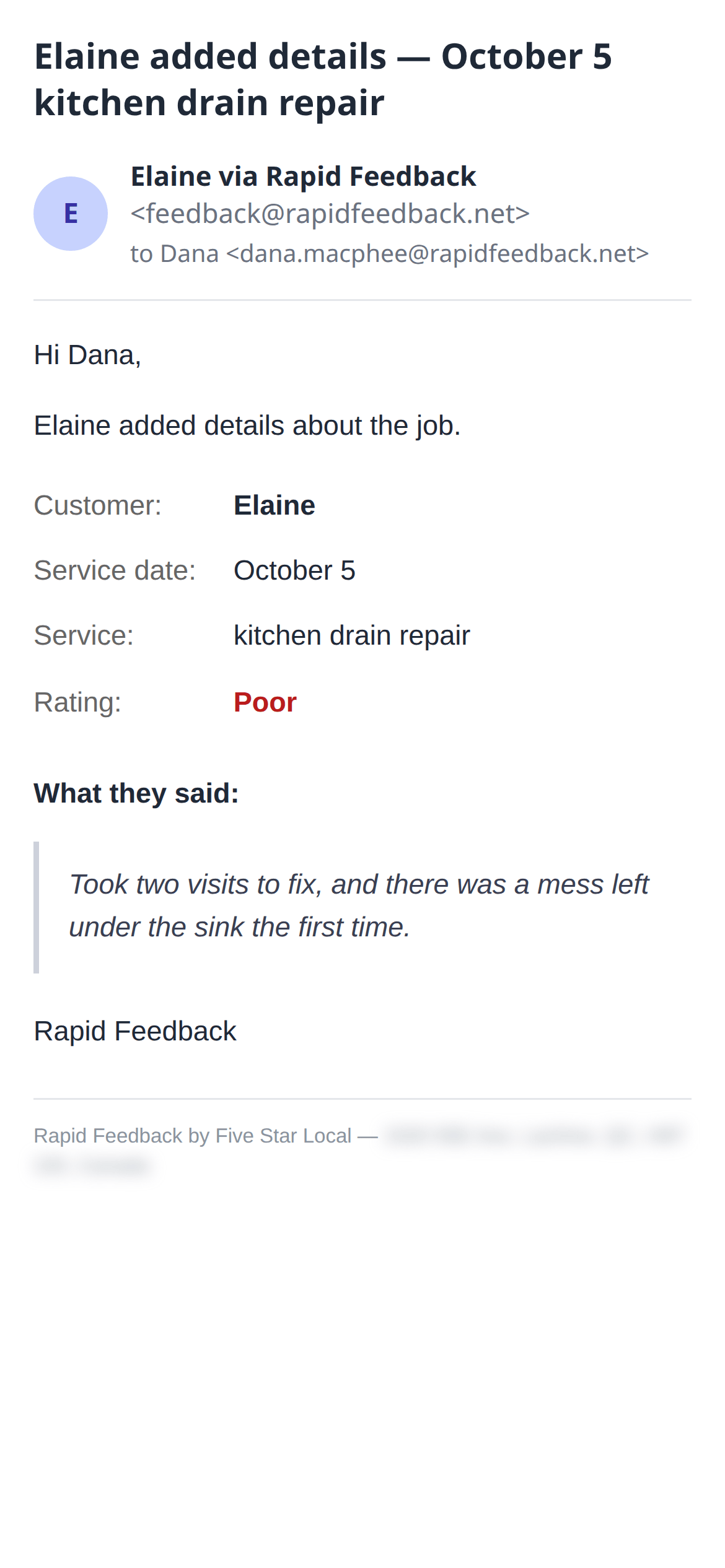
[Customer] added details
Subject: [Customer] added details — [date] [job]
When: After a poor rating, when the customer writes what happened.
What to do: Read their words, then reply.
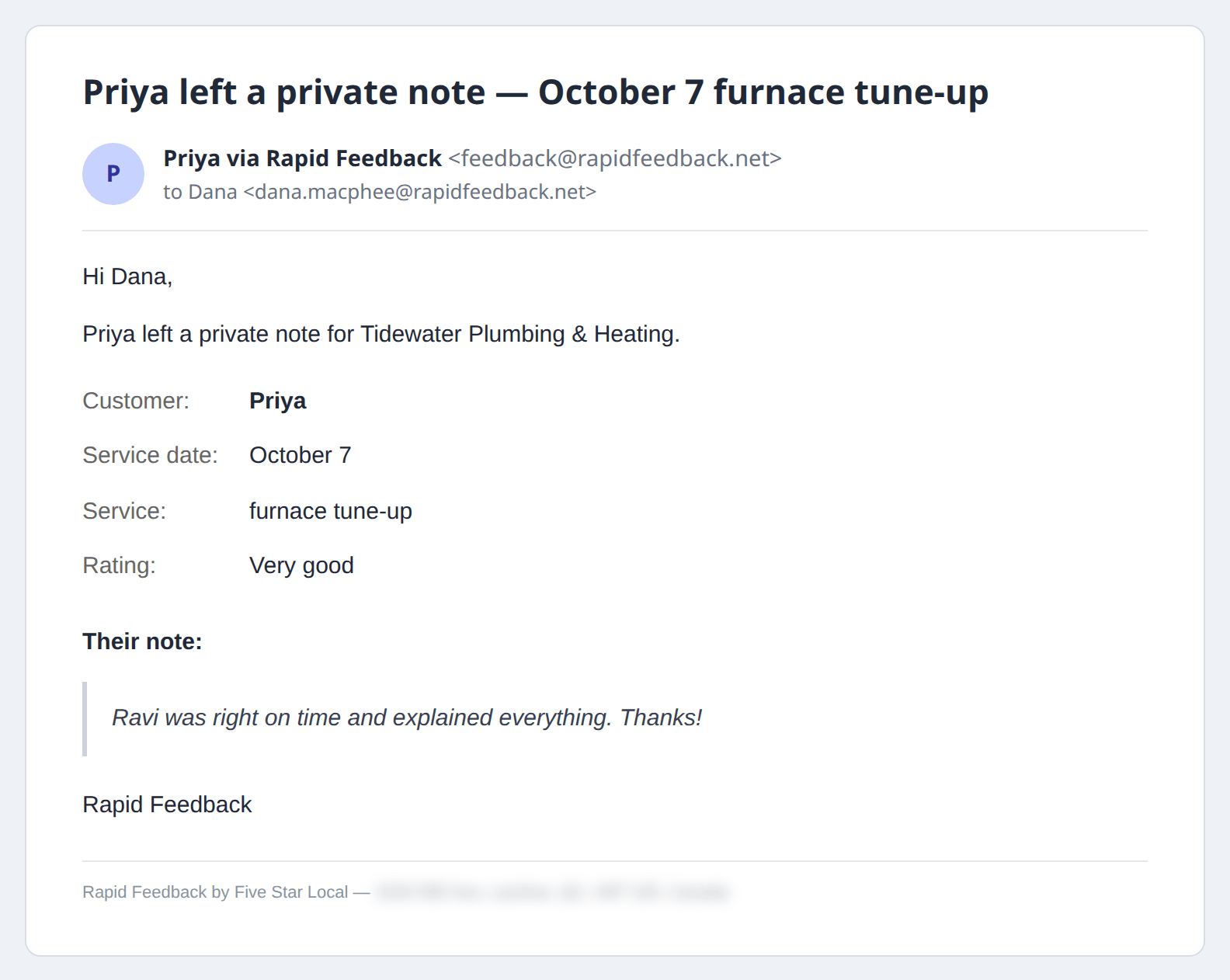
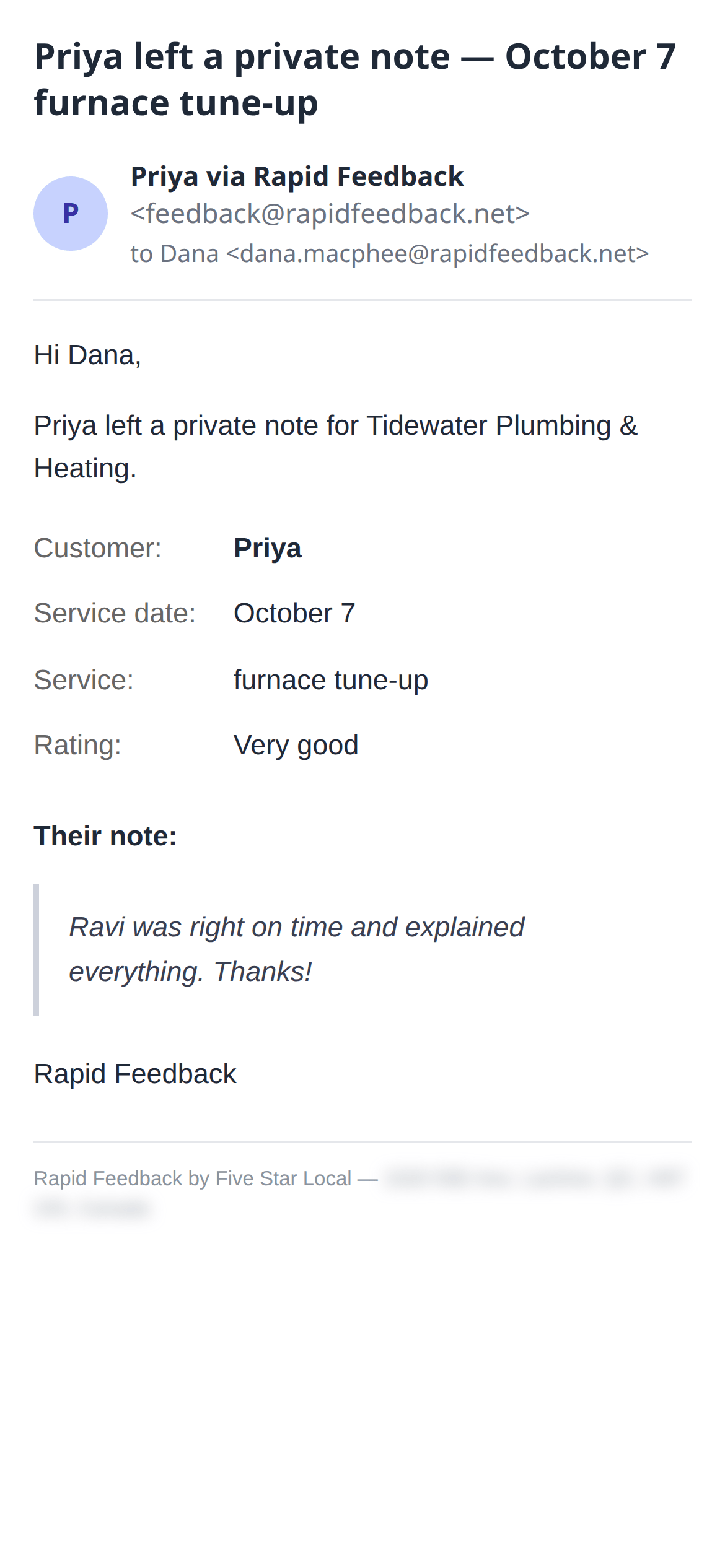
[Customer] left a private note
Subject: [Customer] left a private note — [date] [job]
When: After a good rating, when the customer writes you a note.
What to do: Enjoy it. Maybe share it with your team. See Notes from happy customers.
Tips and trial reminders, from hello@
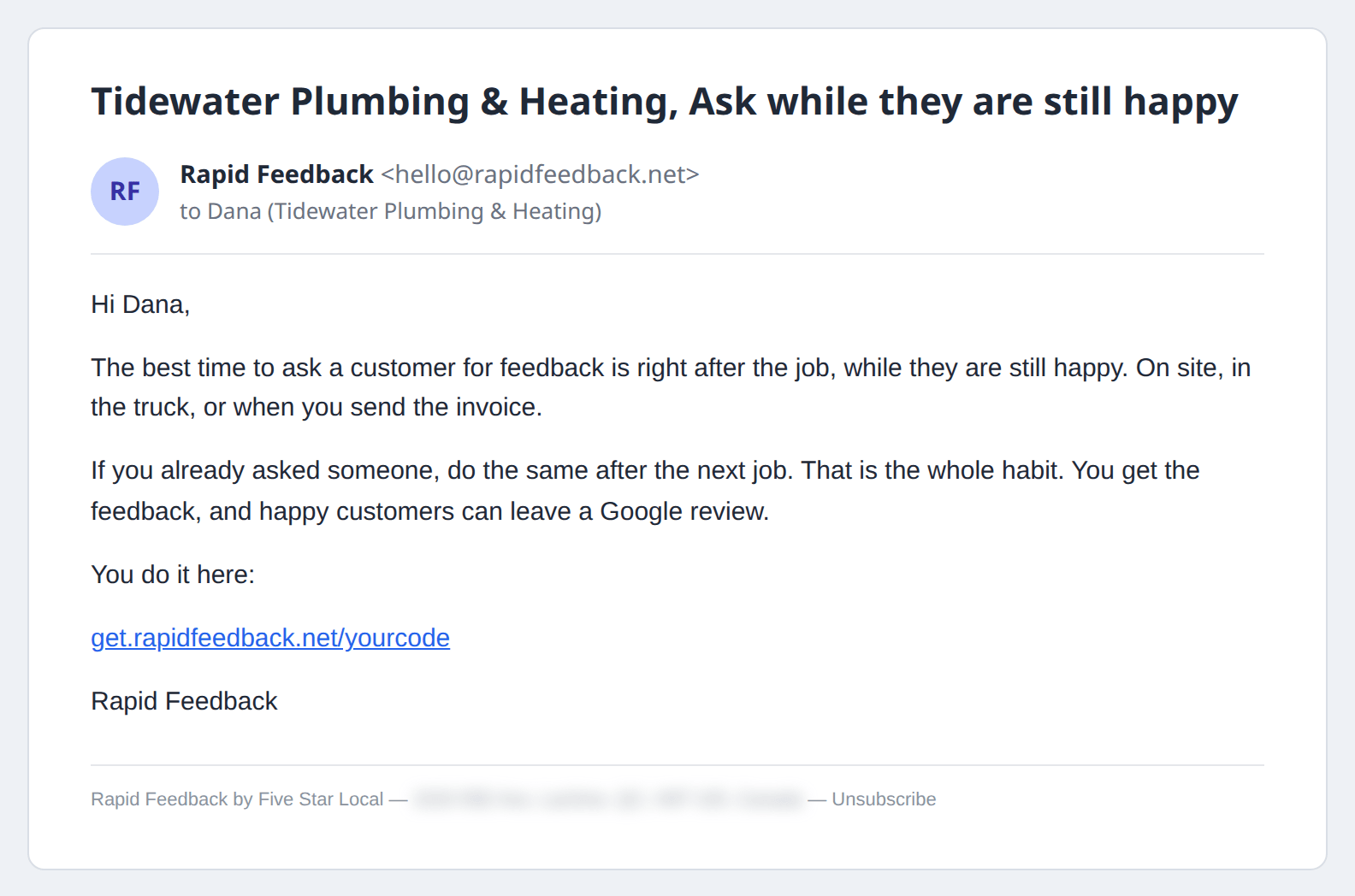
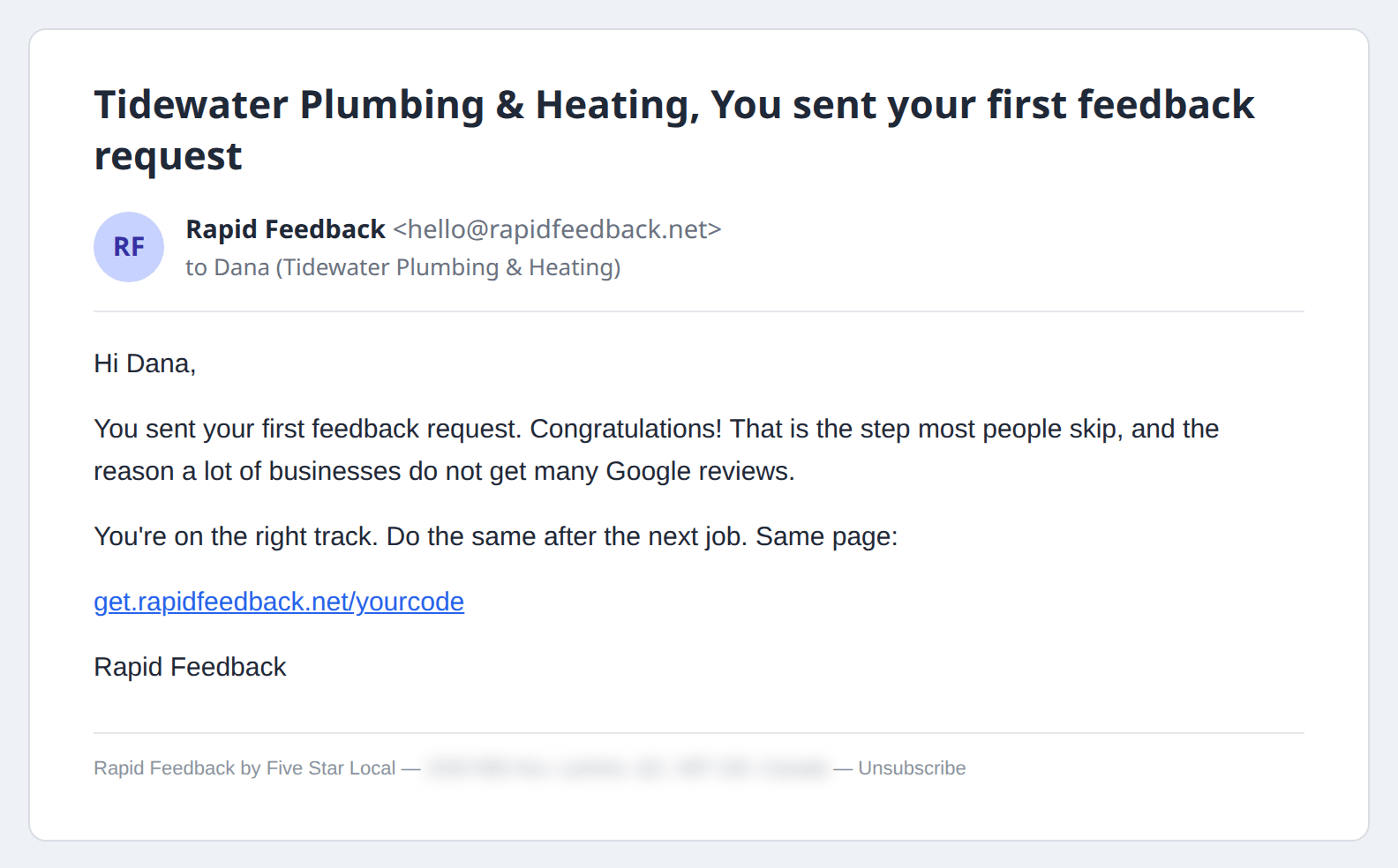
Short, friendly emails during your trial, with ideas for getting the most out of Rapid Feedback. Each has an Unsubscribe link at the bottom. The day is counted from the day you verified your email.
| When | Subject | What it's about |
|---|---|---|
| Day 5 | [your business], Ask while they are still happy | The best moment to ask |
| Your first request | [your business], You sent your first feedback request | A well-done, and what happens next |
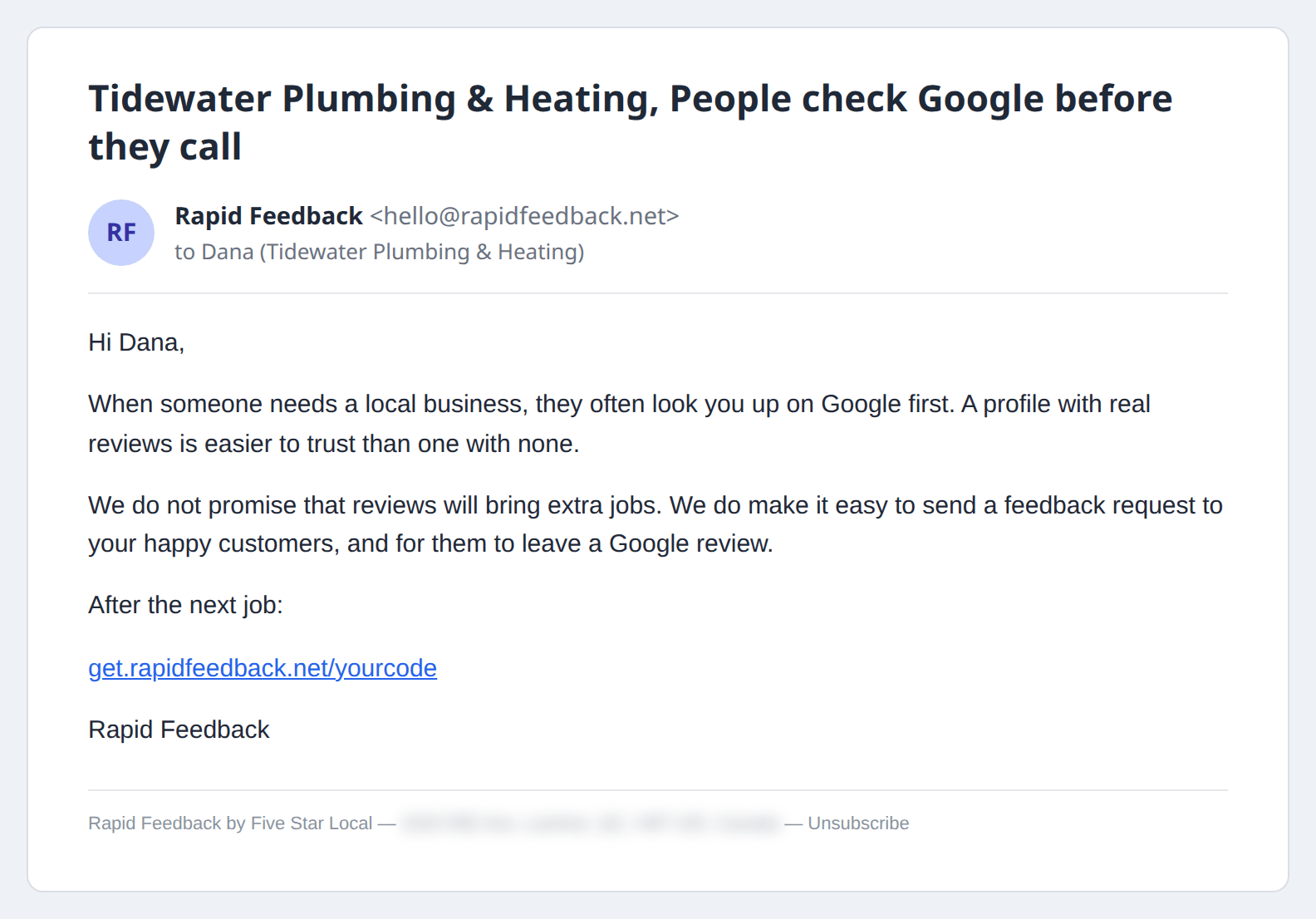
| Day 14 | [your business], People check Google before they call | Why reviews matter to local businesses |
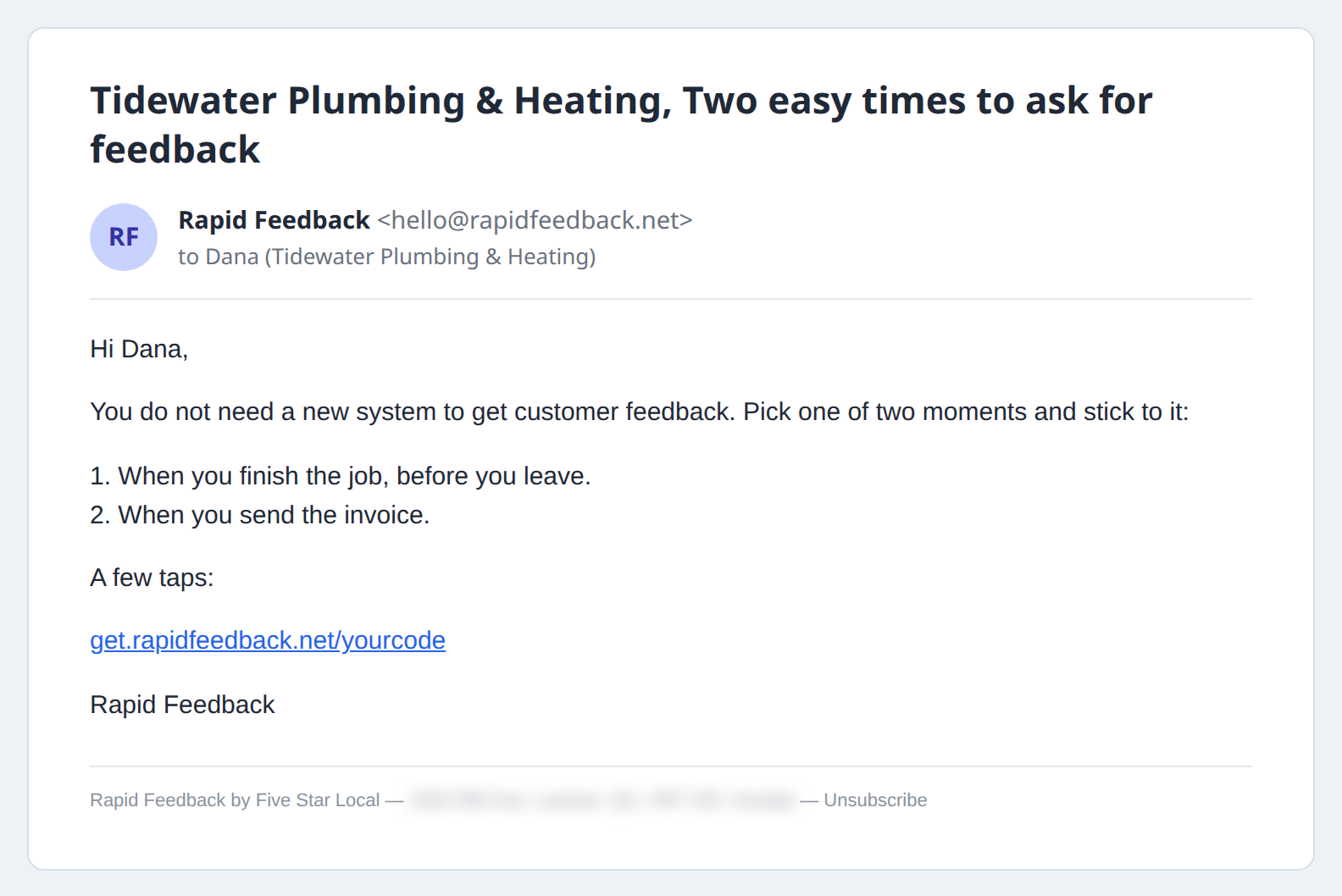
| Day 28 | [your business], Two easy times to ask for feedback | Building the habit |
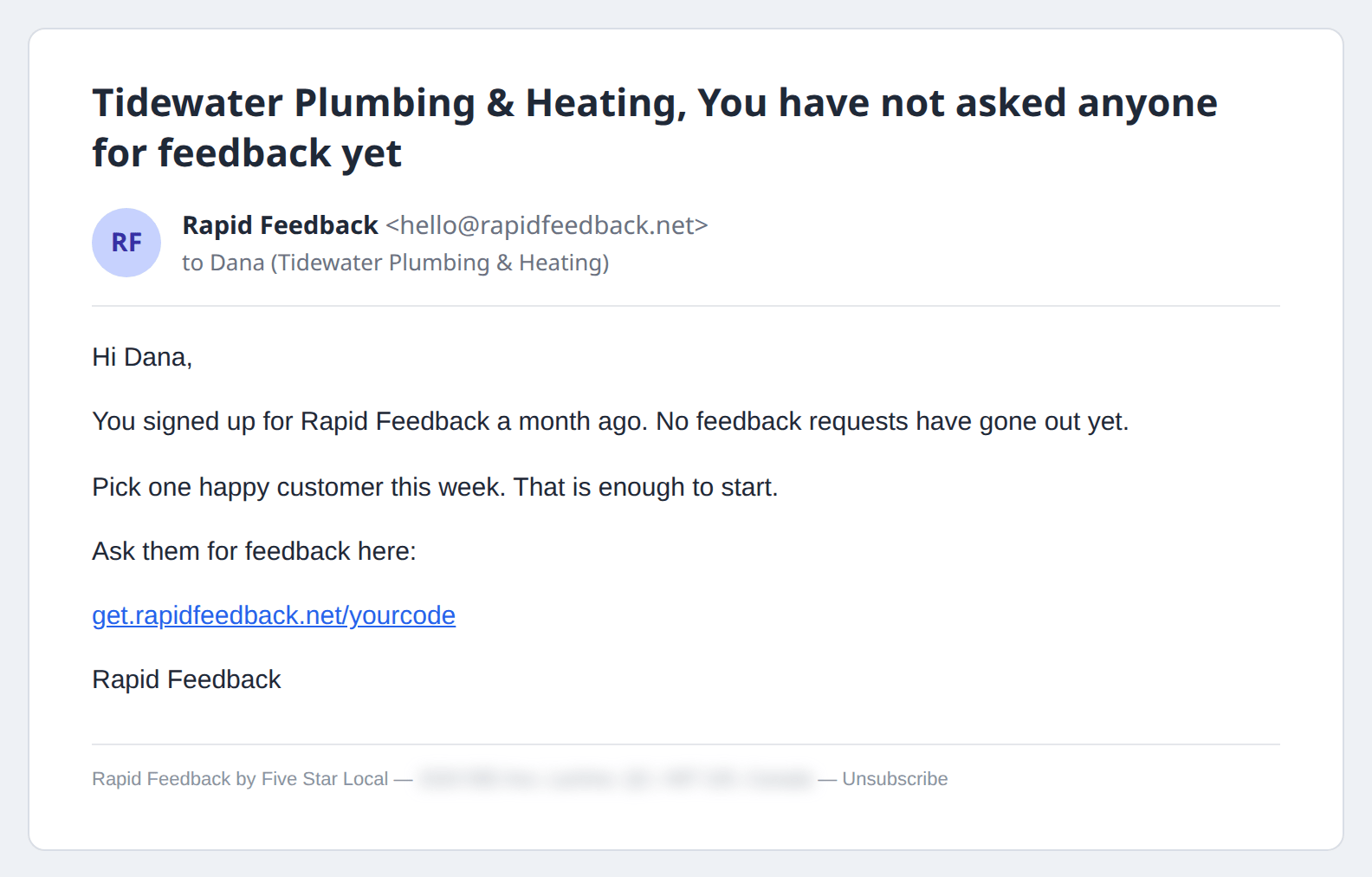
| Day 30 | [your business], You have not asked anyone for feedback yet | Only if you haven't sent a request yet |
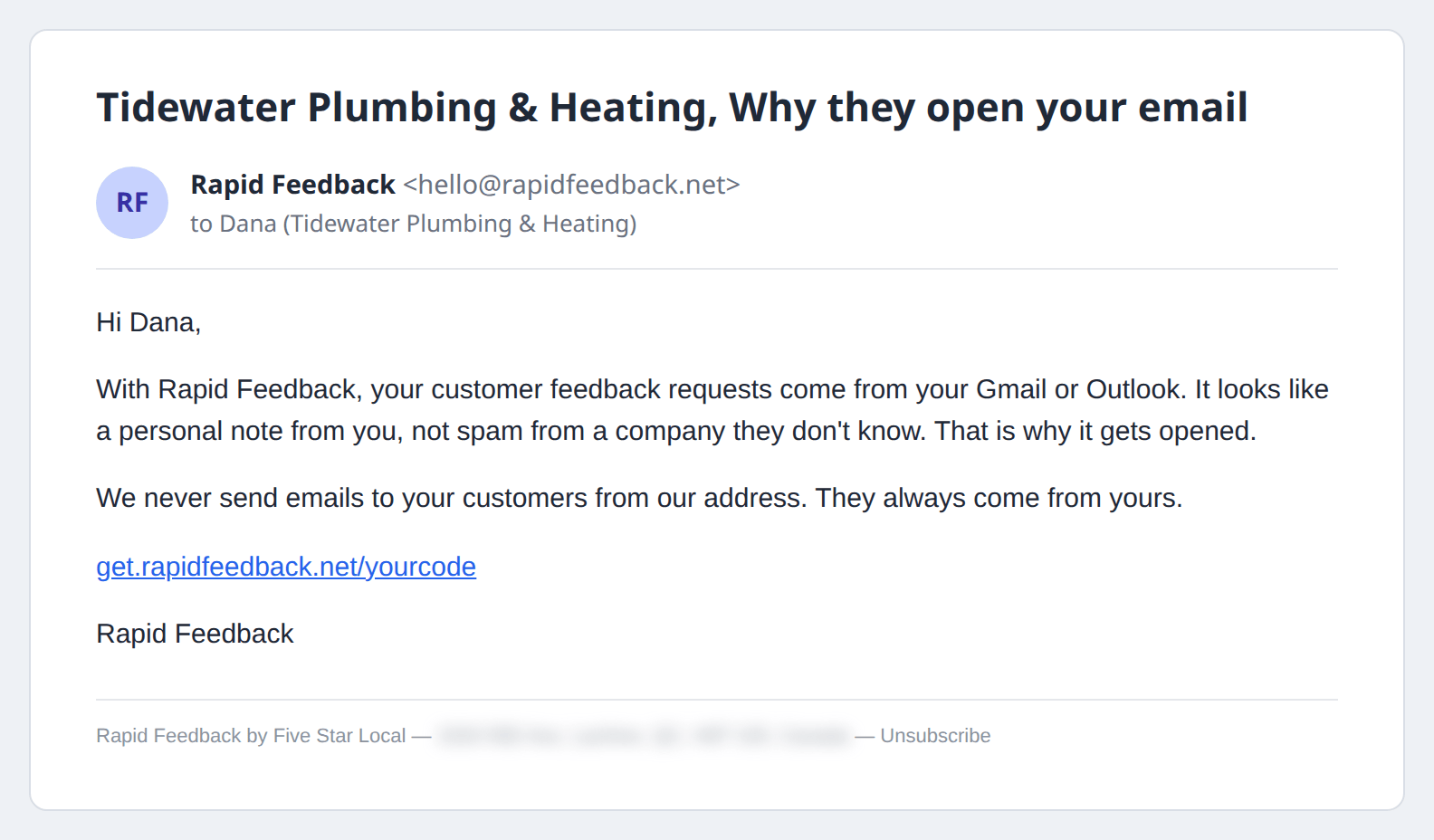
| Day 42 | [your business], Why they open your email | Why requests from your own inbox get read |
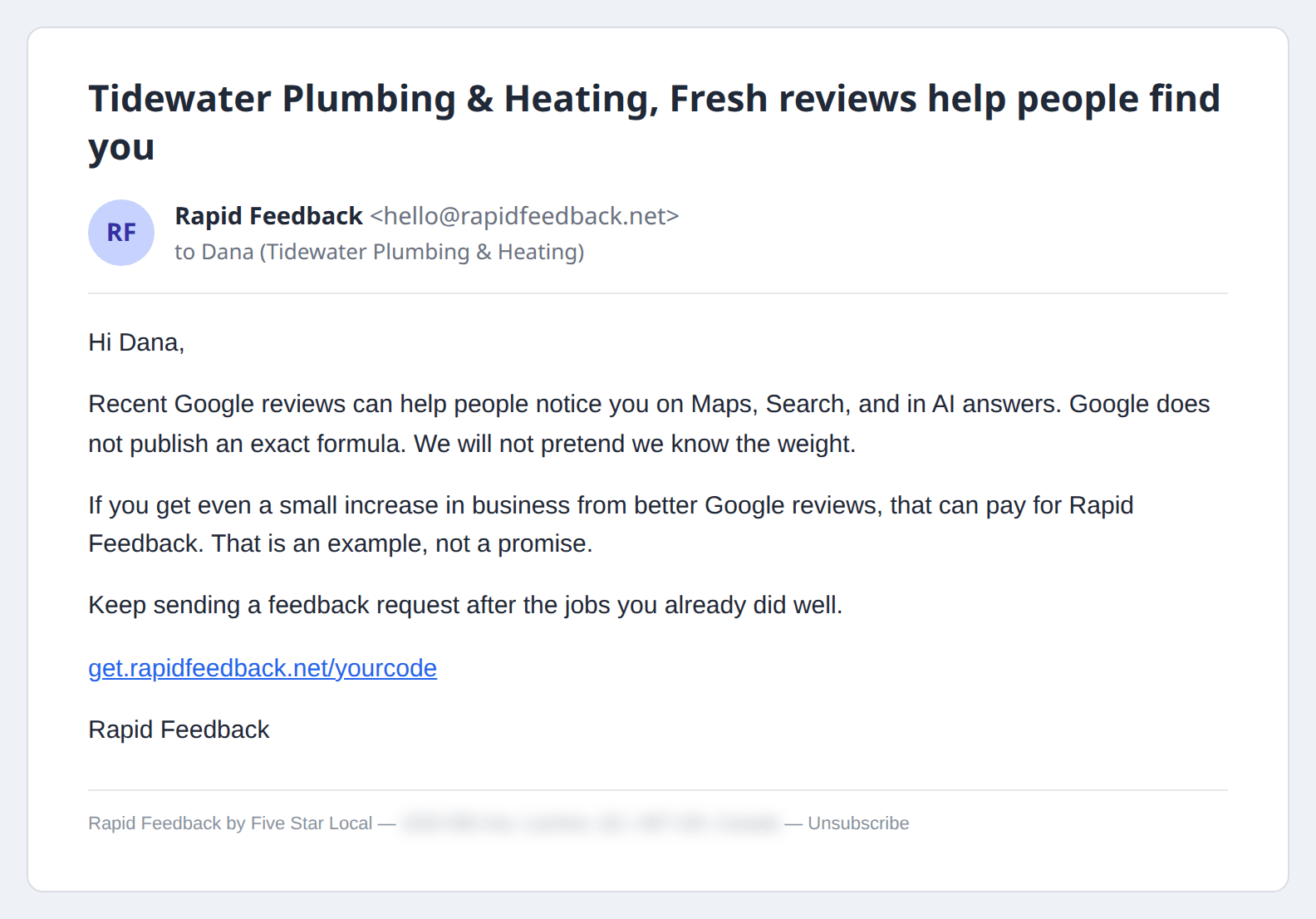
| Day 56 | [your business], Fresh reviews help people find you | Why recent reviews count |
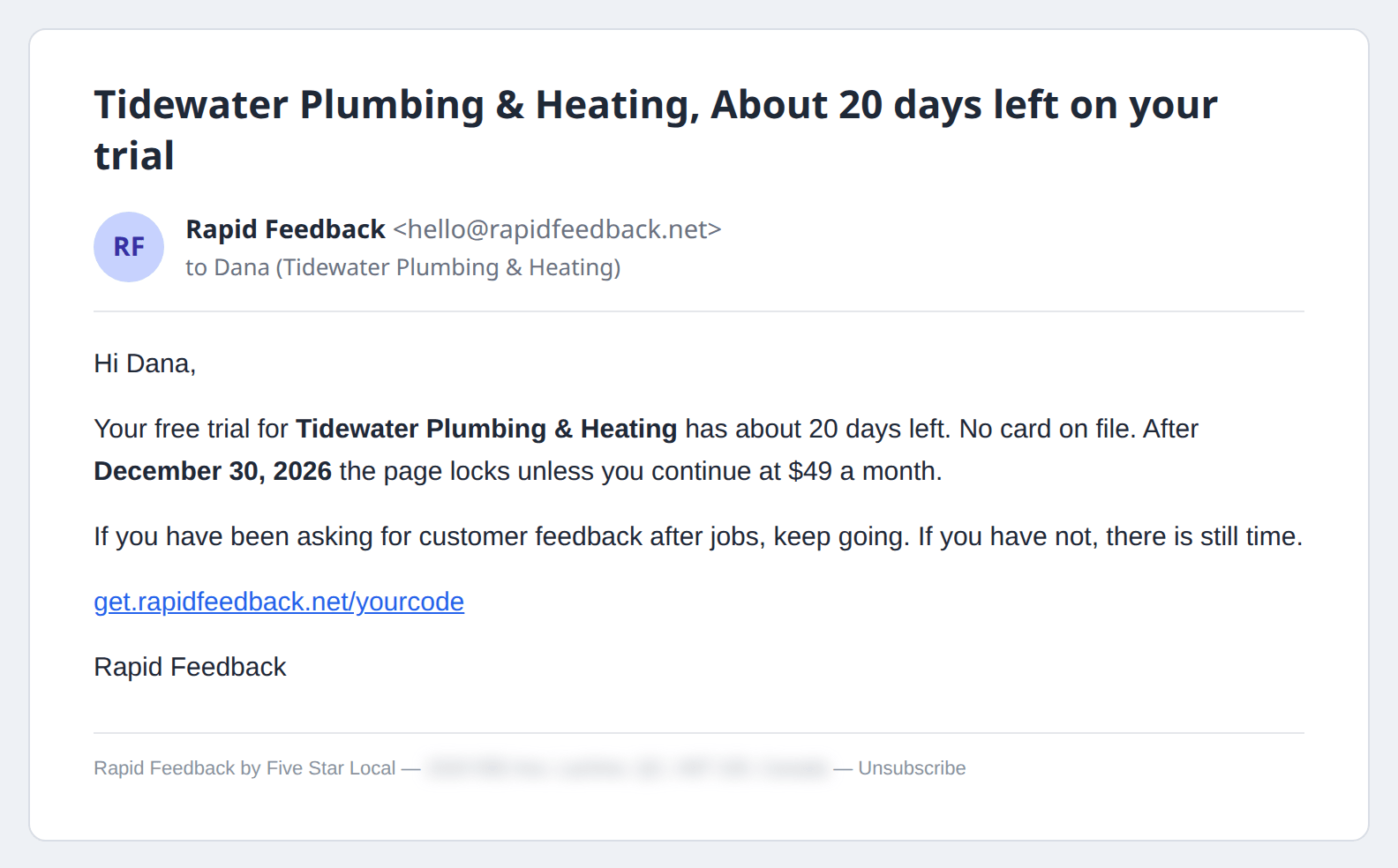
| Day 70 | [your business], About 20 days left on your trial | A heads-up. Skipped if you've added a card |
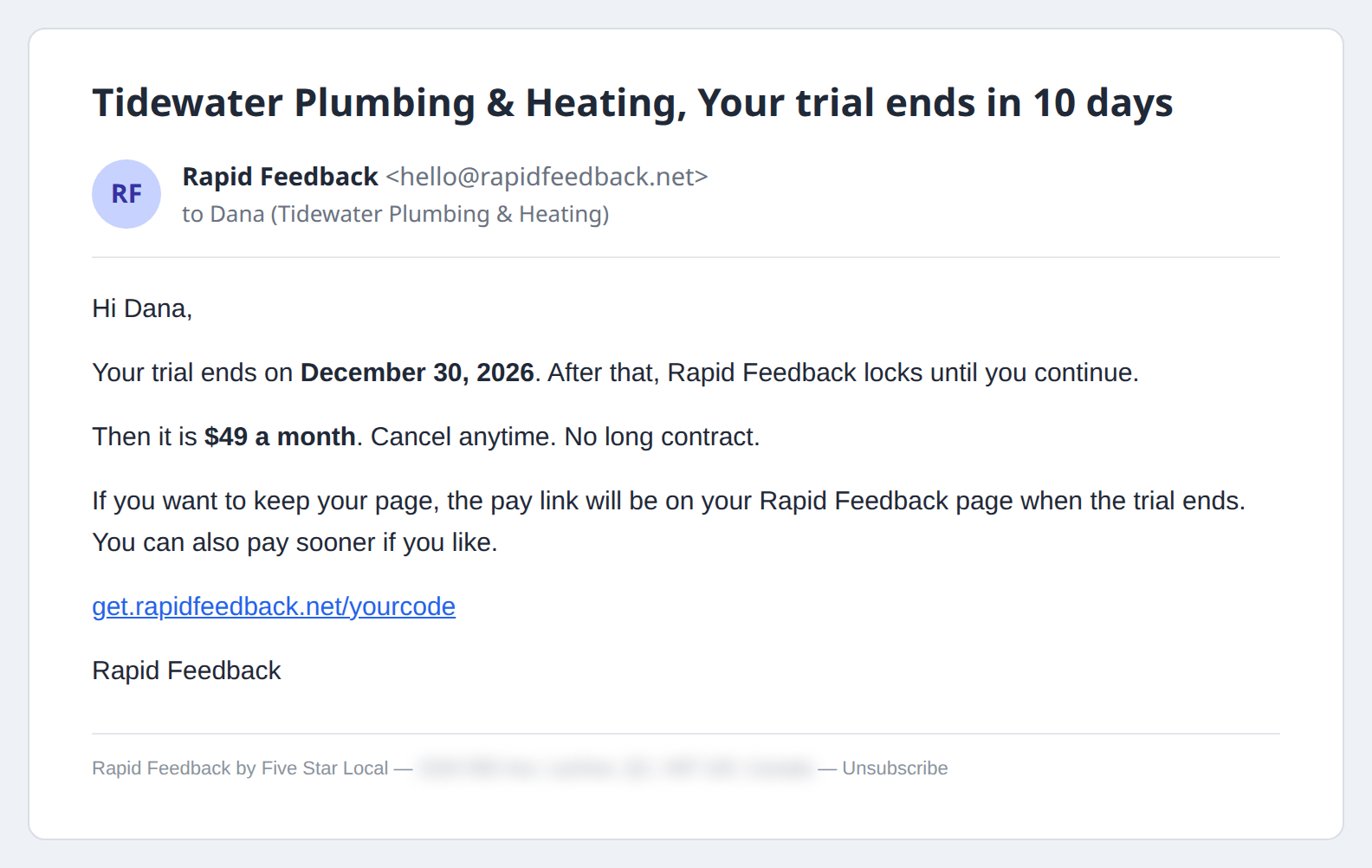
| Day 80 | [your business], Your trial ends in 10 days | Skipped if you've added a card |
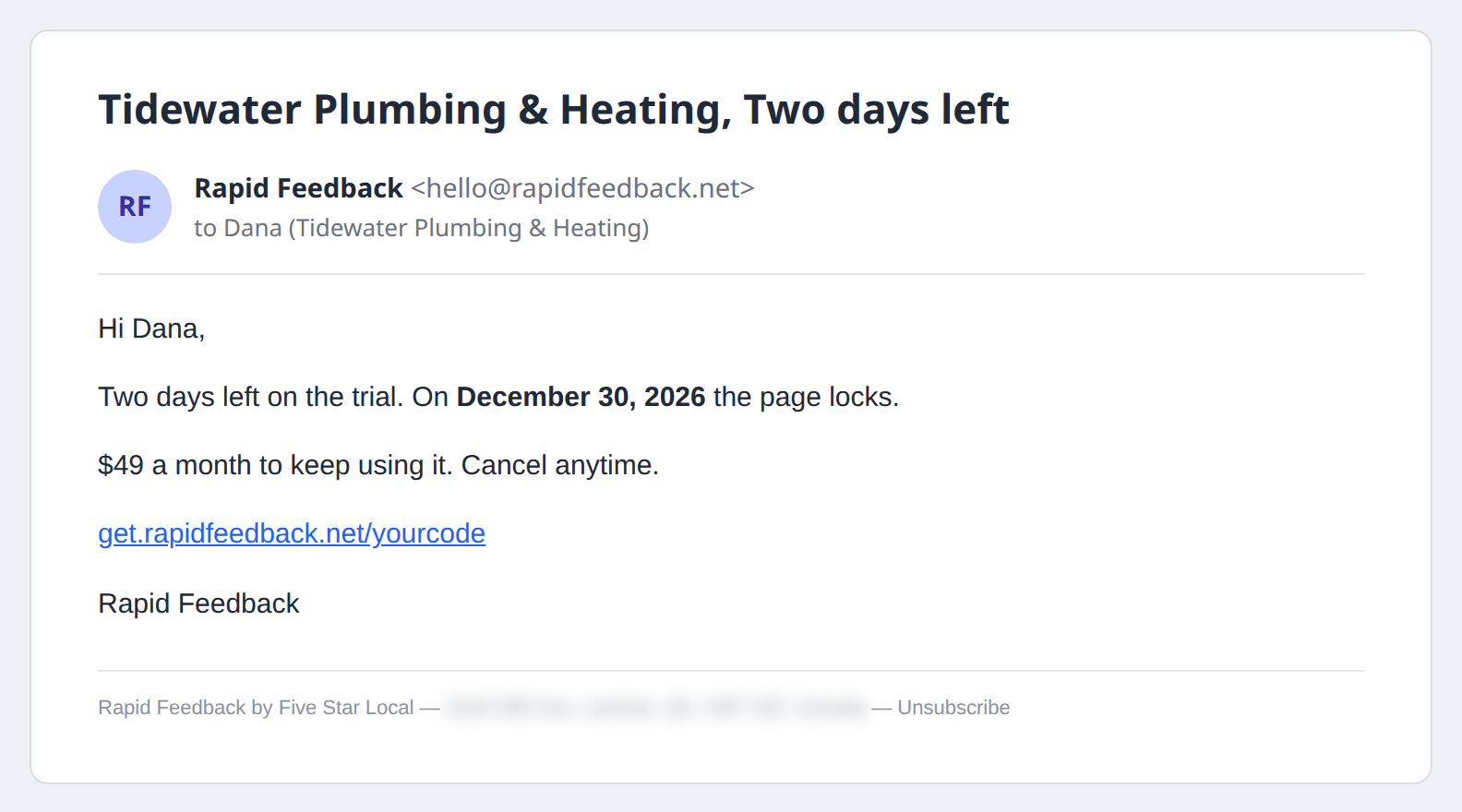
| Day 88 | [your business], Two days left | Skipped if you've added a card |
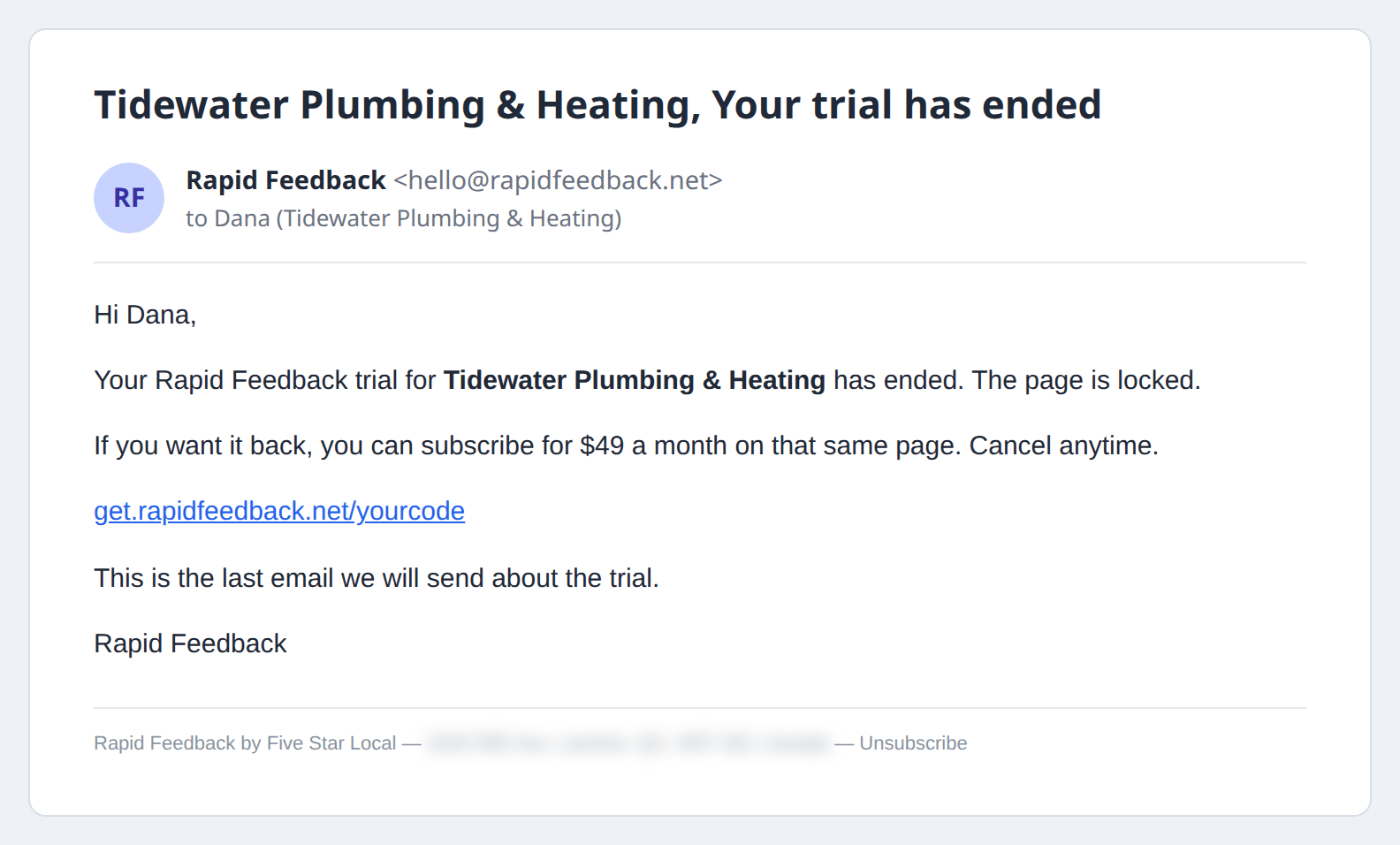
| When your page pauses | [your business], Your trial has ended | Only if the trial ended without a card. How to continue |
Your Rapid Feedback week
Subject: [your business], Your Rapid Feedback week
When: Weekly, in weeks with activity.
What to do: Have a look at your numbers. See Your weekly recap.
Emails from Stripe
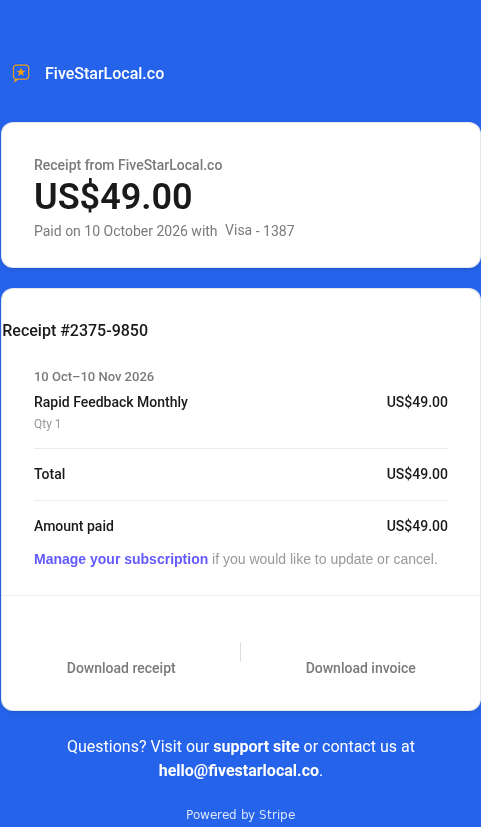
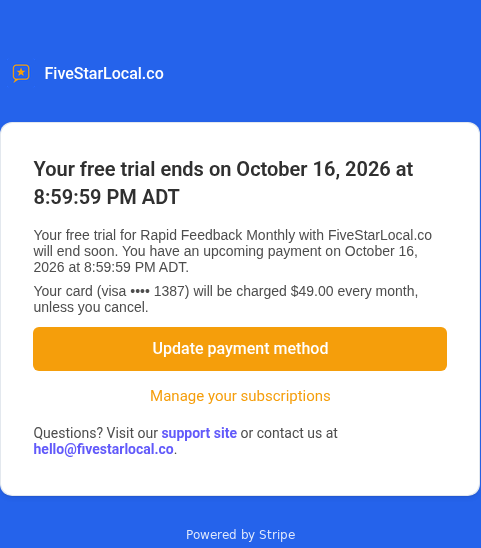
Payment emails come from Stripe, the payment service we use, not from us.
| When | |
|---|---|
| Receipt | After each payment |
| Your trial is ending soon | About a week before your first payment, if you've added a card |
| Payment failed | If your card is declined. See If a payment fails |
| Card expiring | Before your card's expiry date |