Preview the email first
See exactly what your customer will read, before you send.
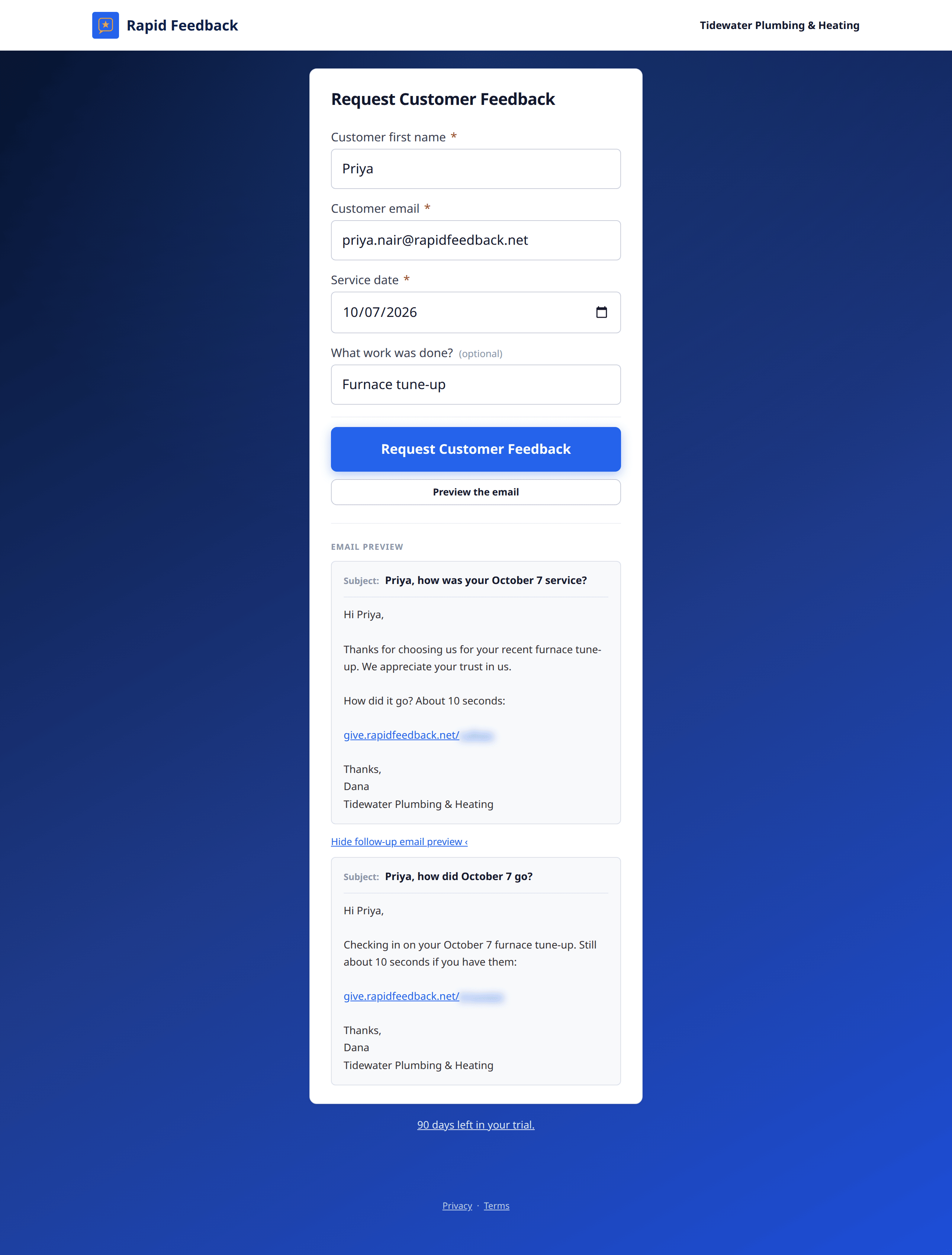
- Fill in the form as usual.
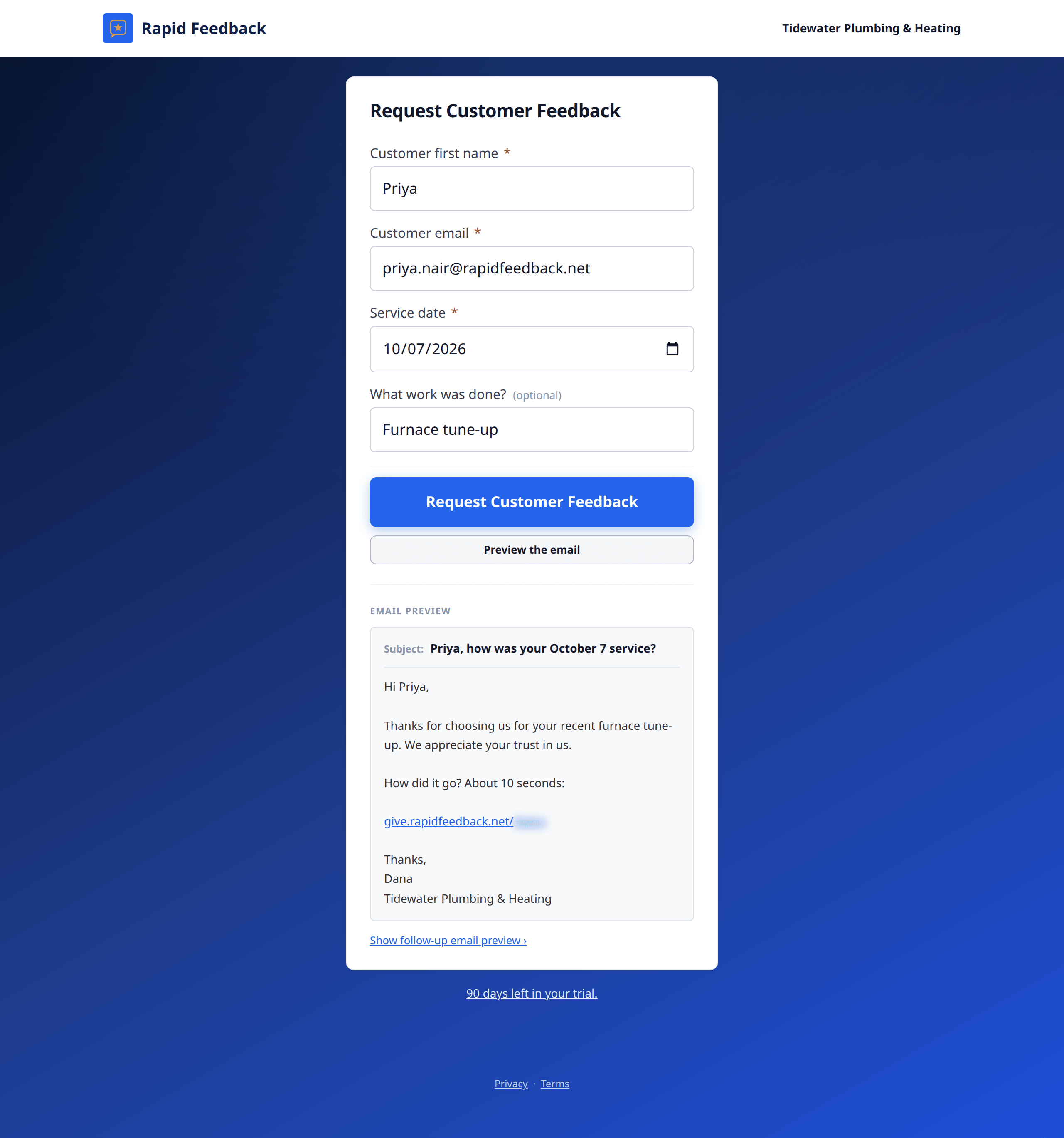
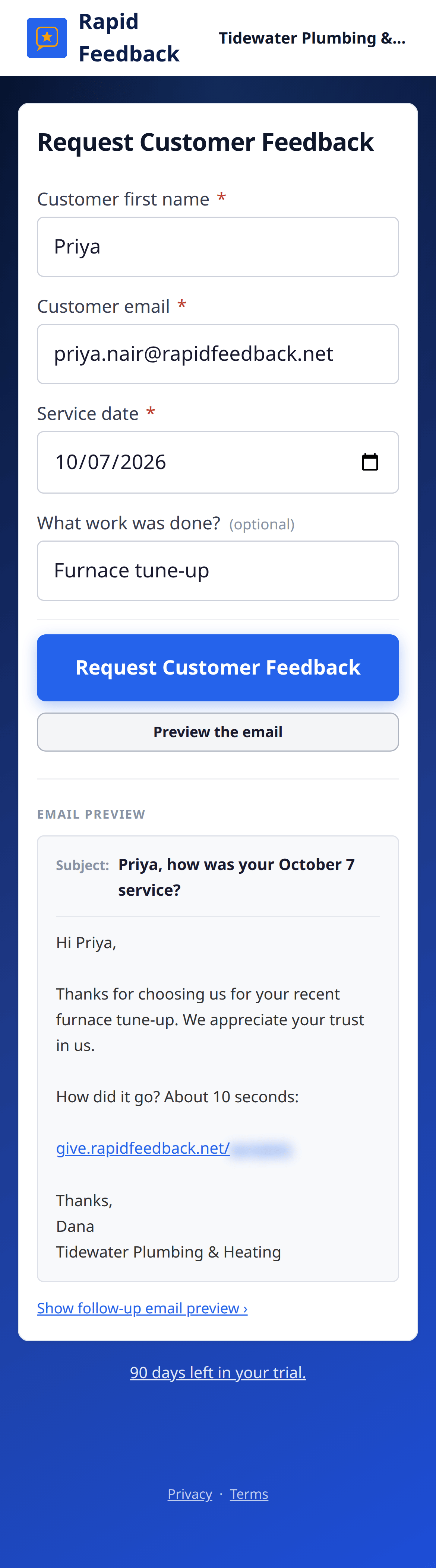
- Press Preview the email. The Email preview opens below the form, with the subject line and the message.
- If you use follow-up reminders, press Show follow-up email preview › to see the reminder too.
- Happy with it? Press Request Customer Feedback.
The preview updates as you type, so you can watch the name, date and job fill in.
What the email says
Here's the feedback request for a customer named Priya, from Dana at Tidewater Plumbing & Heating:
Subject: Priya, how was your October 7 service?
Hi Priya,
Thanks for choosing us for your recent furnace tune-up. We appreciate your trust in us.
How did it go? About 10 seconds:
give.rapidfeedback.net/…
Thanks,
Dana
Tidewater Plumbing & Heating
It's short on purpose. Short, personal emails from someone you know get answered.
What you can change
| Part of the email | Where to change it |
|---|---|
| "your recent furnace tune-up" | The What work was done? box on the form, or your default description |
| "how was your October 7 service" (the subject) | Your word for the work: service, visit, appointment, and so on |
| "We appreciate your trust in us" | How should we say thanks? |
| The signature, "Dana" | Your name |
| "Tidewater Plumbing & Heating" | Business name |
The rest of the wording is the same for everyone. It's been kept simple so it reads well on any phone.
Good to know
The link in the email is unique to that one customer and that one job. It works for 90 days.