Find your Google review link
Google gives every business profile a short link that opens the "write a review" box. Here's how to get yours.
From your Google Business Profile
- Go to business.google.com and sign in with the Google account that manages your business.
- Pick your business, if you have more than one.
- Click Ask for reviews (sometimes called Get more reviews).
- Copy the link. It usually looks like
https://g.page/r/…/review. With no reviews yet, Google heads that screen Get your first review.
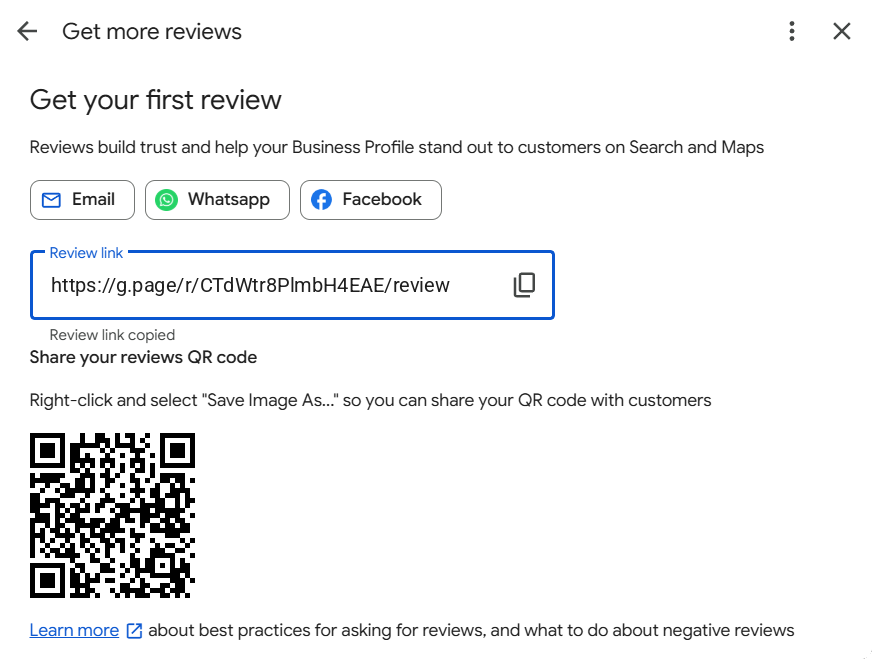
Google's own help page explains it too: Create a Google link or QR code to request reviews.
From Google Maps
- Open Google Maps and search for your business name.
- Open your listing. If you see Claim this business, follow the steps (it's free).
- Once you manage the listing, get the review link from the profile as above.
No Google Business Profile yet?
You'll need one, because it's where your customers' Google reviews live. Creating one is free at business.google.com. Google may ask you to verify your business, which can take a little while.
Tip
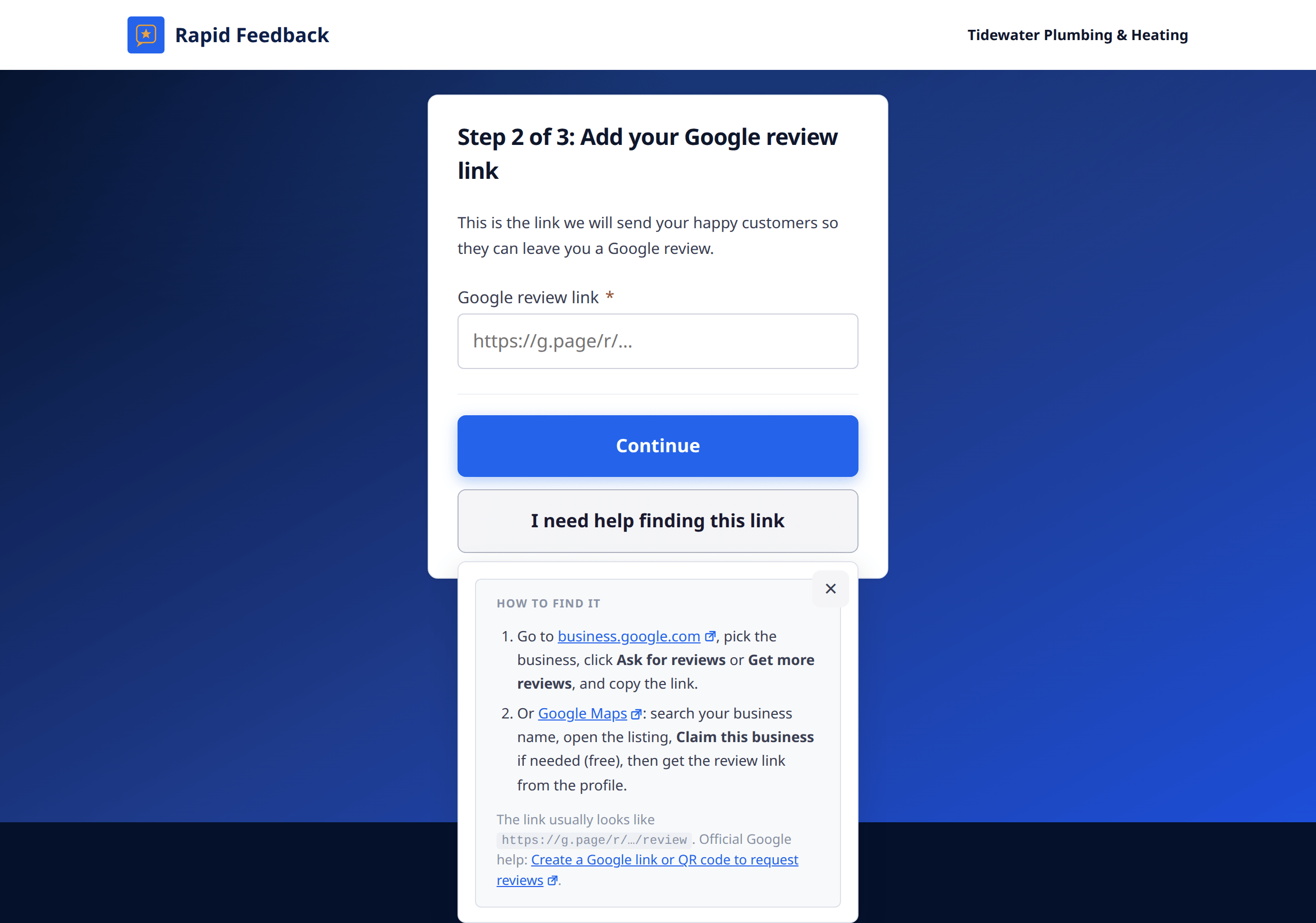
Your 90-day free trial starts when you verify your email with us. If you're still waiting on Google, you might like to get your profile sorted first, then sign up for Rapid Feedback. If you've already signed up, no problem: come back to Step 2 any time using your verification email.
Good to know
Each Google listing can be connected to one Rapid Feedback account. To change your link after setup, email hello@rapidfeedback.net.