Quick Start
Set up Rapid Feedback and send your first feedback request in one sitting.
1. Before you start
Have these ready:
- Your business email. The one your customers already know, on Gmail (including Google Workspace) or Outlook (including Hotmail and Microsoft 365). Feedback requests go out from this address, so customers recognize them.
- Your Google Business Profile. That's your business listing on Google Maps. You'll copy your review link from it. Don't have one yet? See Find your Google review link.
- About 20 minutes, and a computer if you can. Setup is easiest on a bigger screen. Everyday sending works great on a phone.
You don't need a credit card. Your free trial is 90 days.
2. Sign up and verify your email
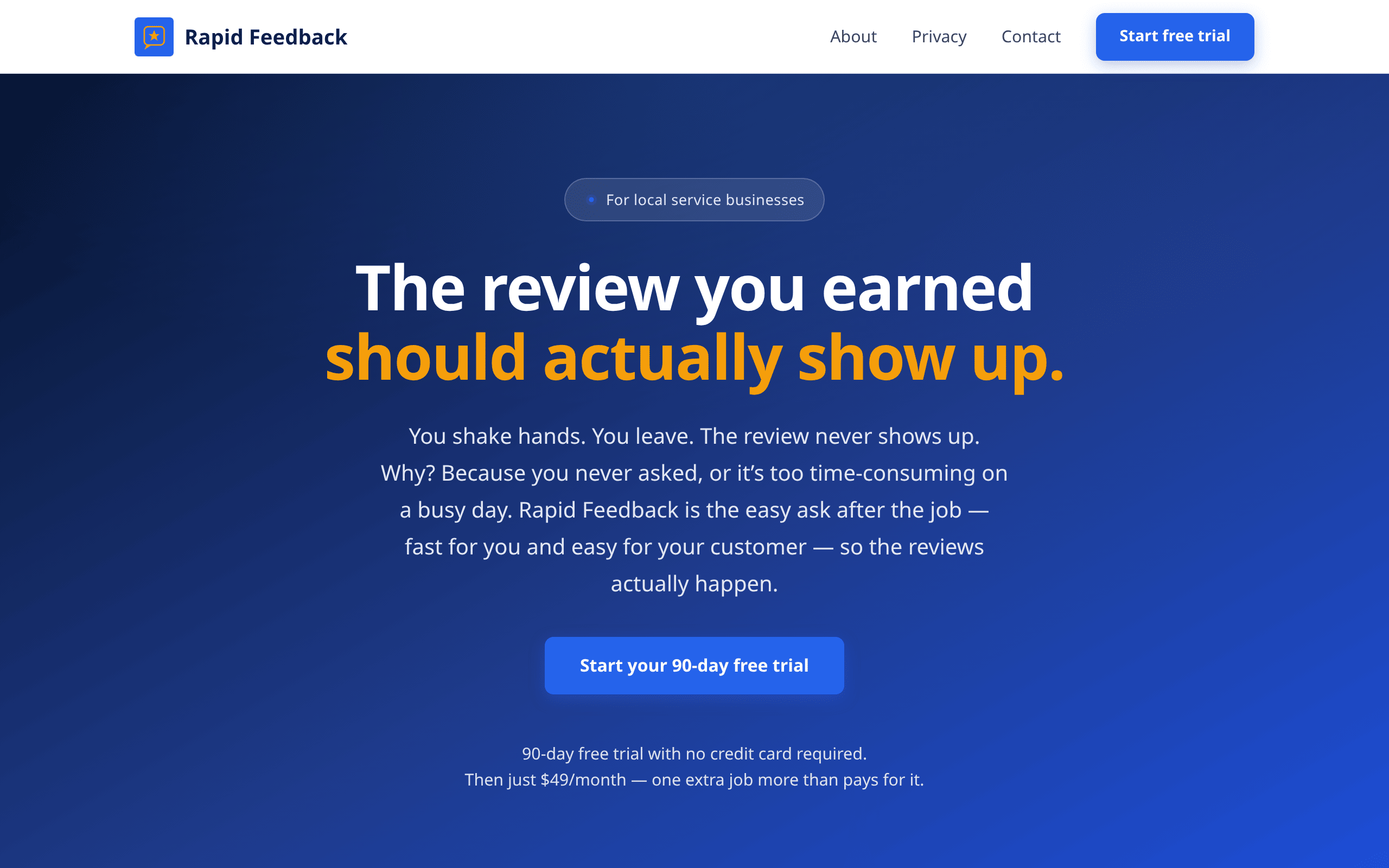
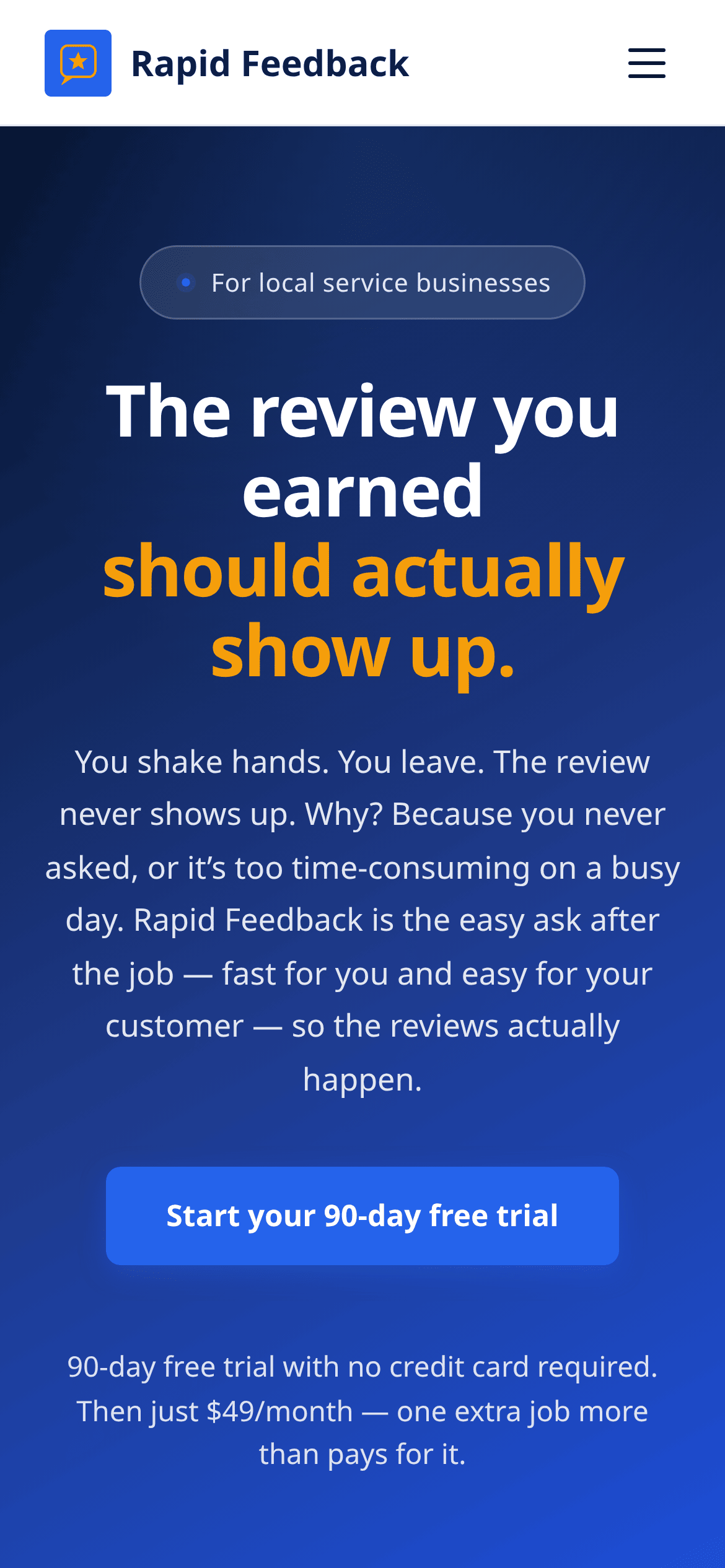
- Go to rapidfeedback.net and press Start your 90-day free trial, or go straight to get.rapidfeedback.net/signup.
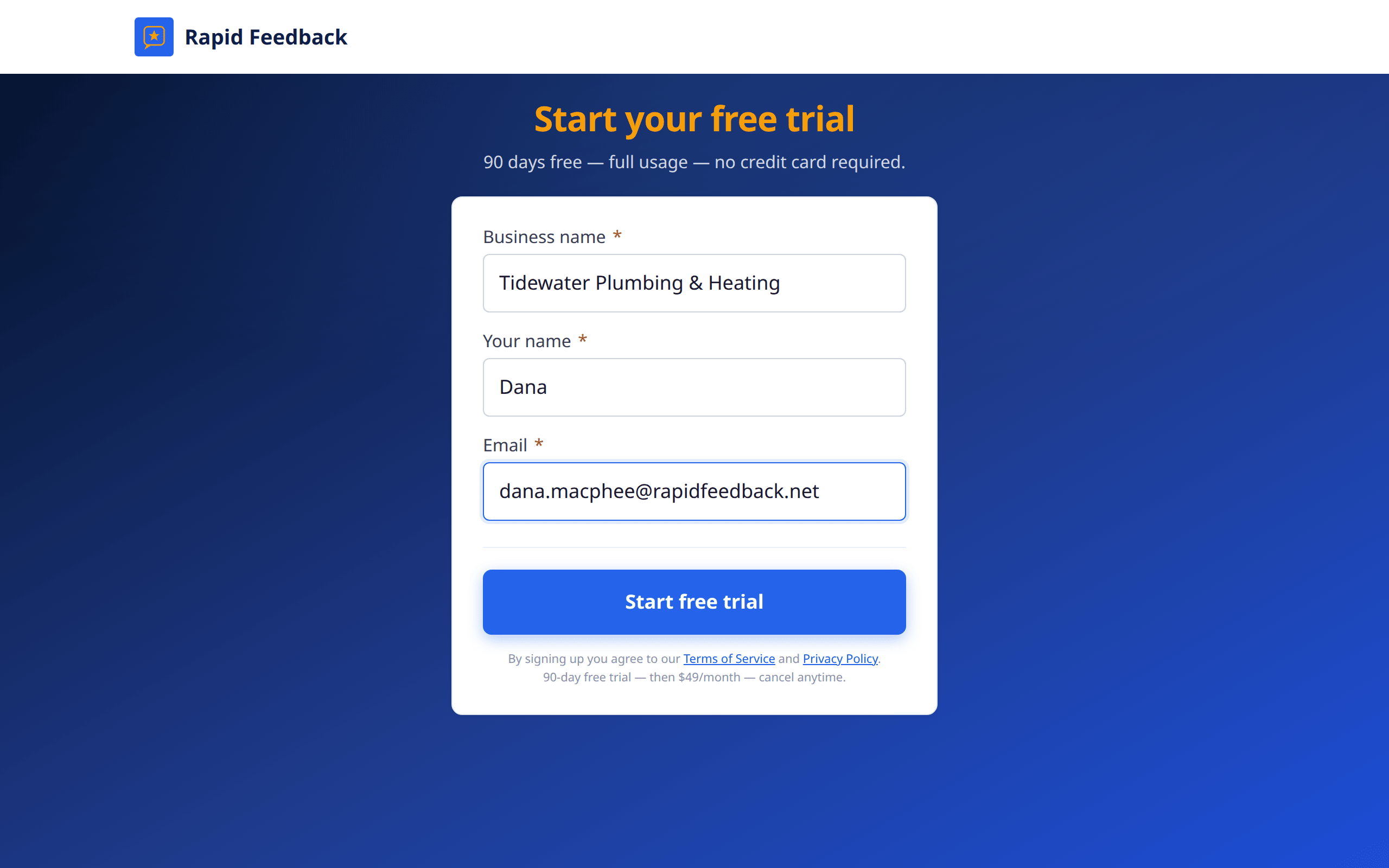
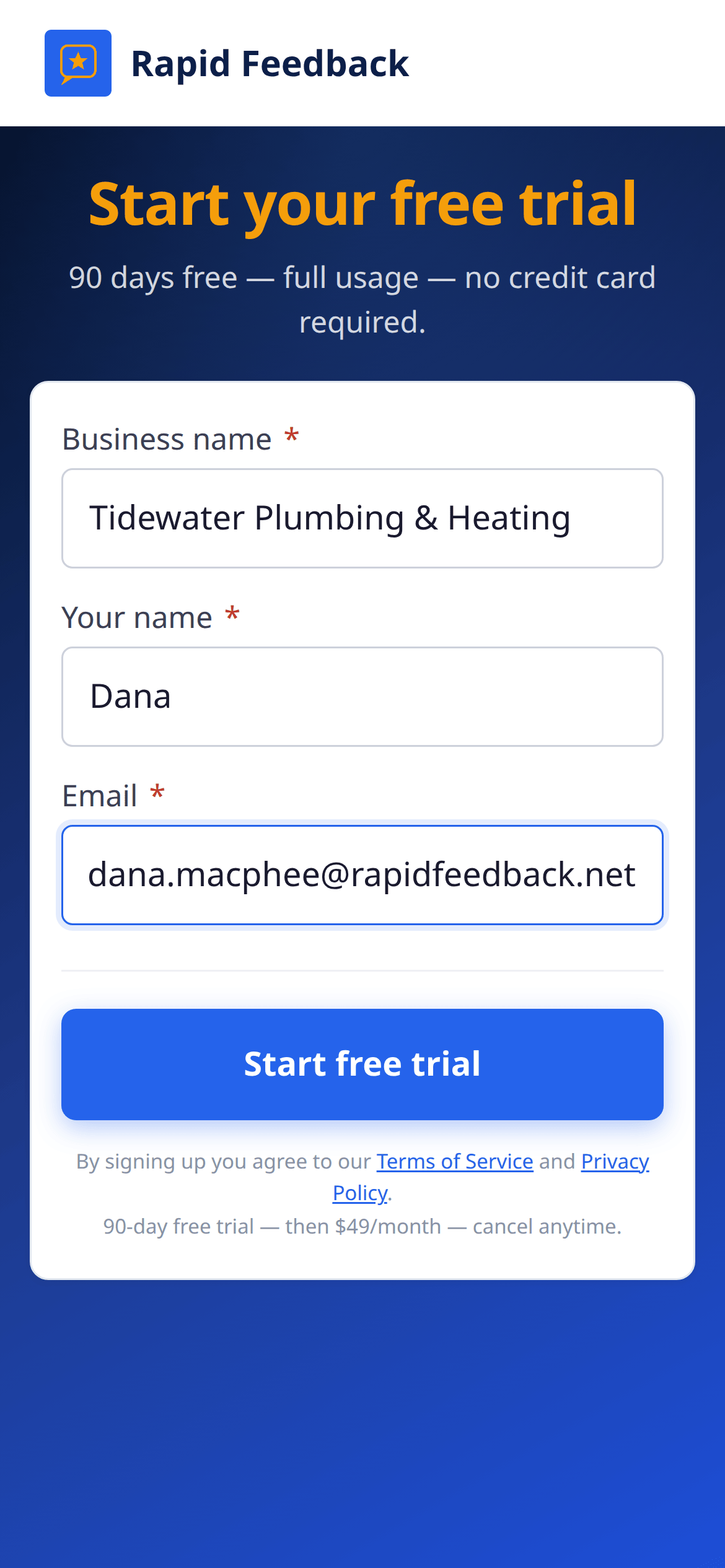
- Fill in Business name, Your name and Email. Use your business email.
- Press Start free trial.
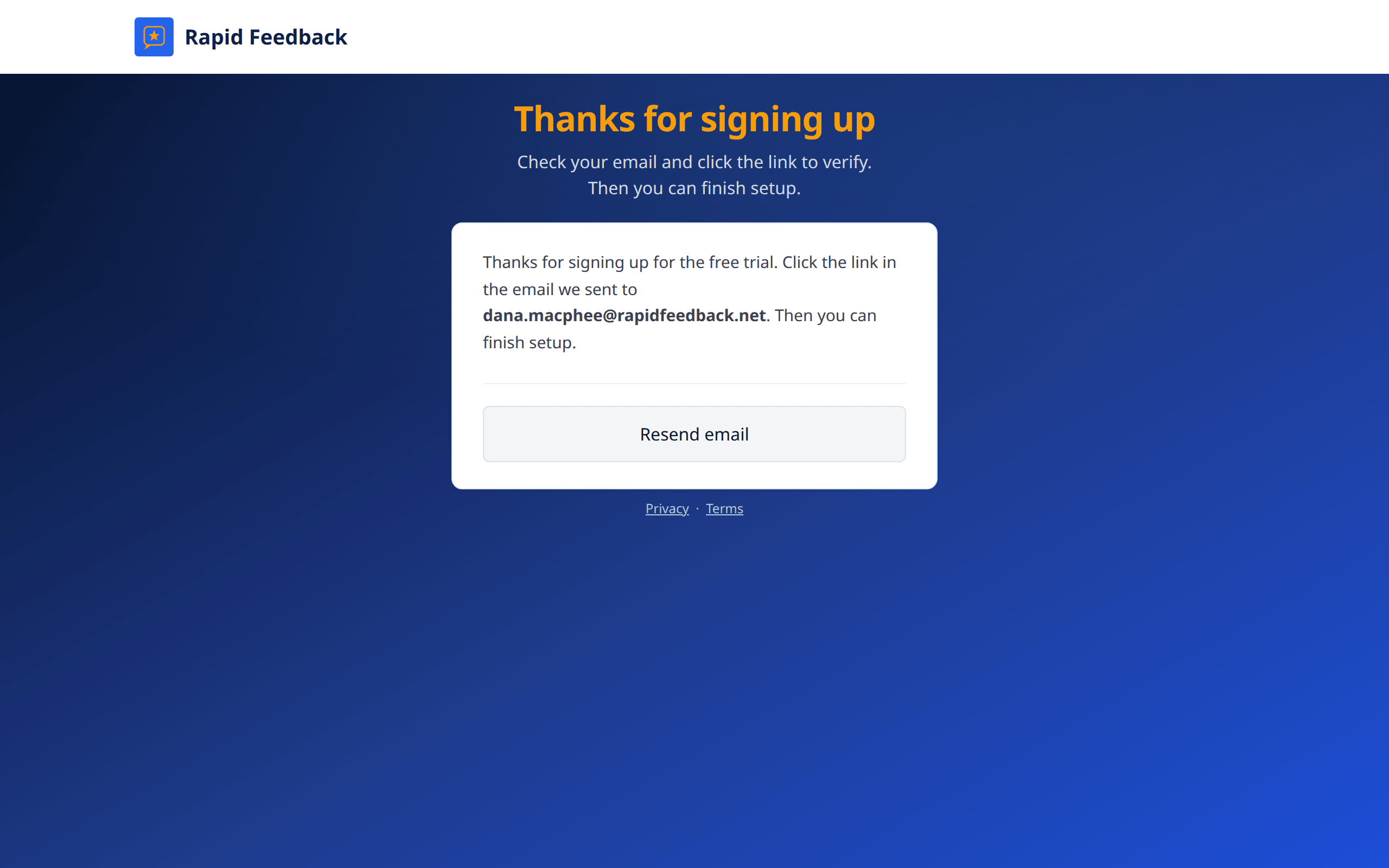
You'll see Thanks for signing up. Now check your inbox:
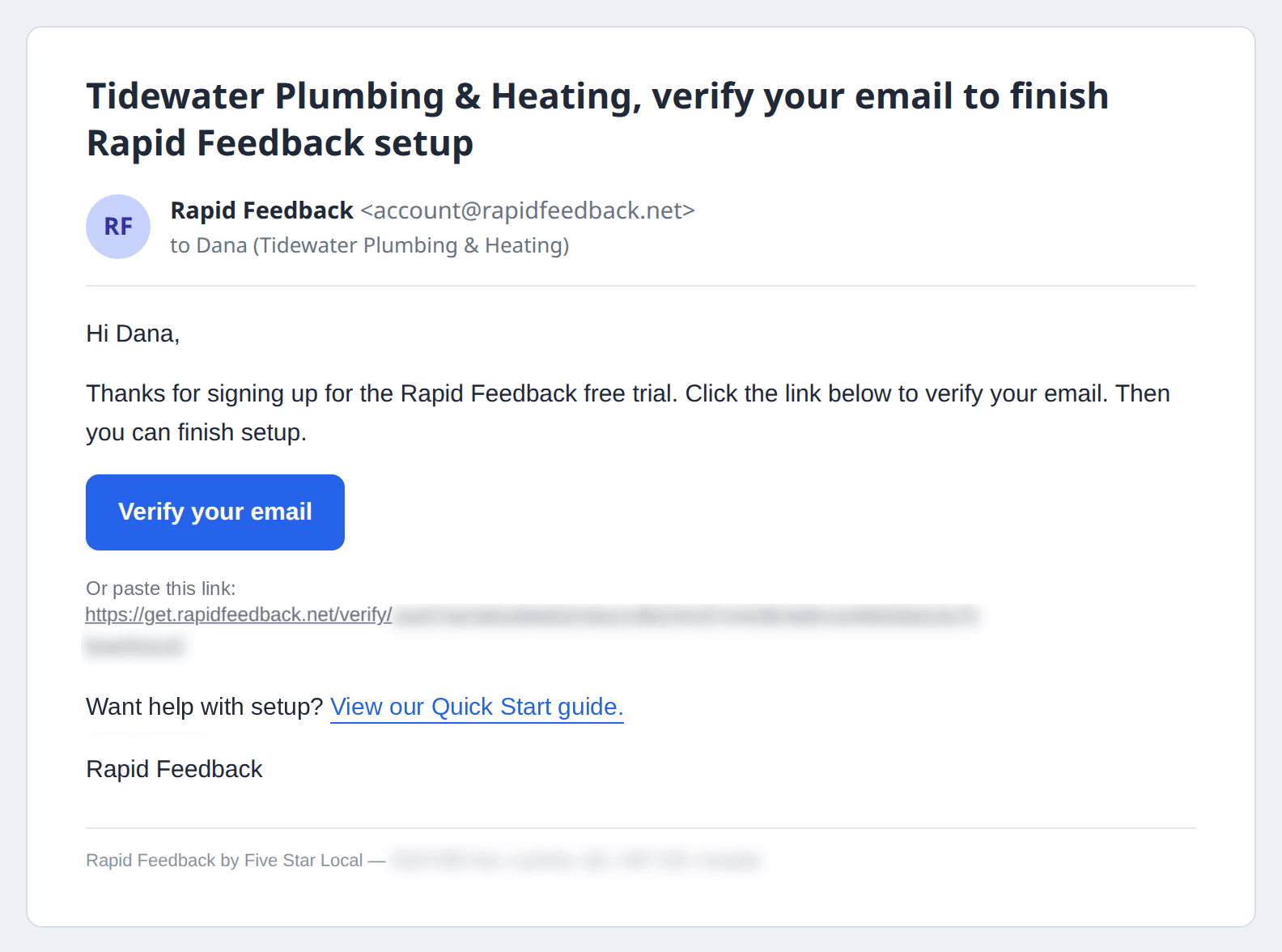
- Open the email from Rapid Feedback called "[your business], verify your email to finish Rapid Feedback setup".
- Click Verify your email. You're taken straight to the next step.
Tip
No email after a few minutes? Check your spam or junk folder, then press Resend email on the waiting page. Always use the newest email, because sending a new one replaces the old link.
3. Add your Google review link
This is the link every customer is offered so they can leave you a Google review.
- On Step 2 of 3: Add your Google review link, paste your link into Google review link. It usually looks like
https://g.page/r/…/review. - Press Continue.
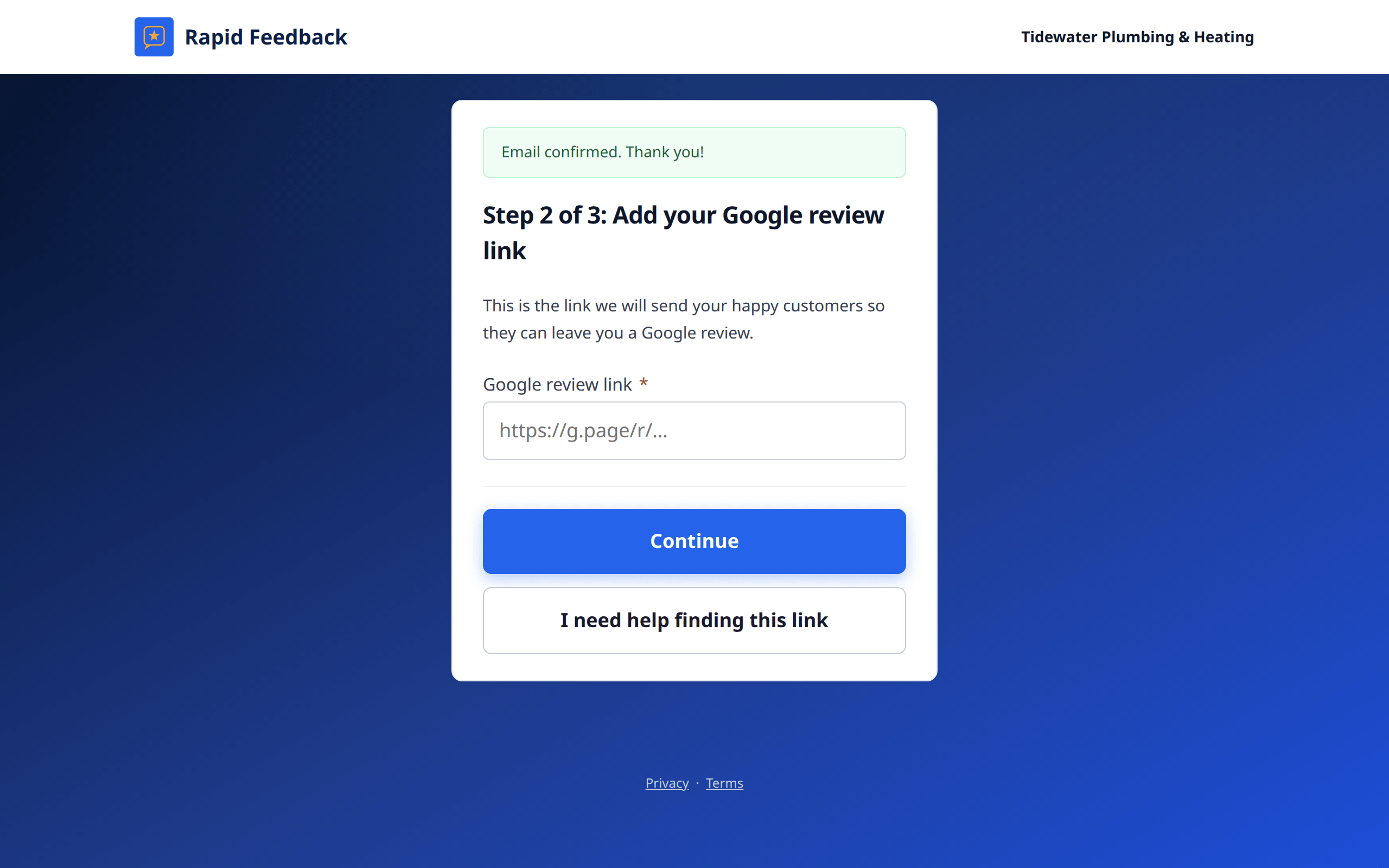
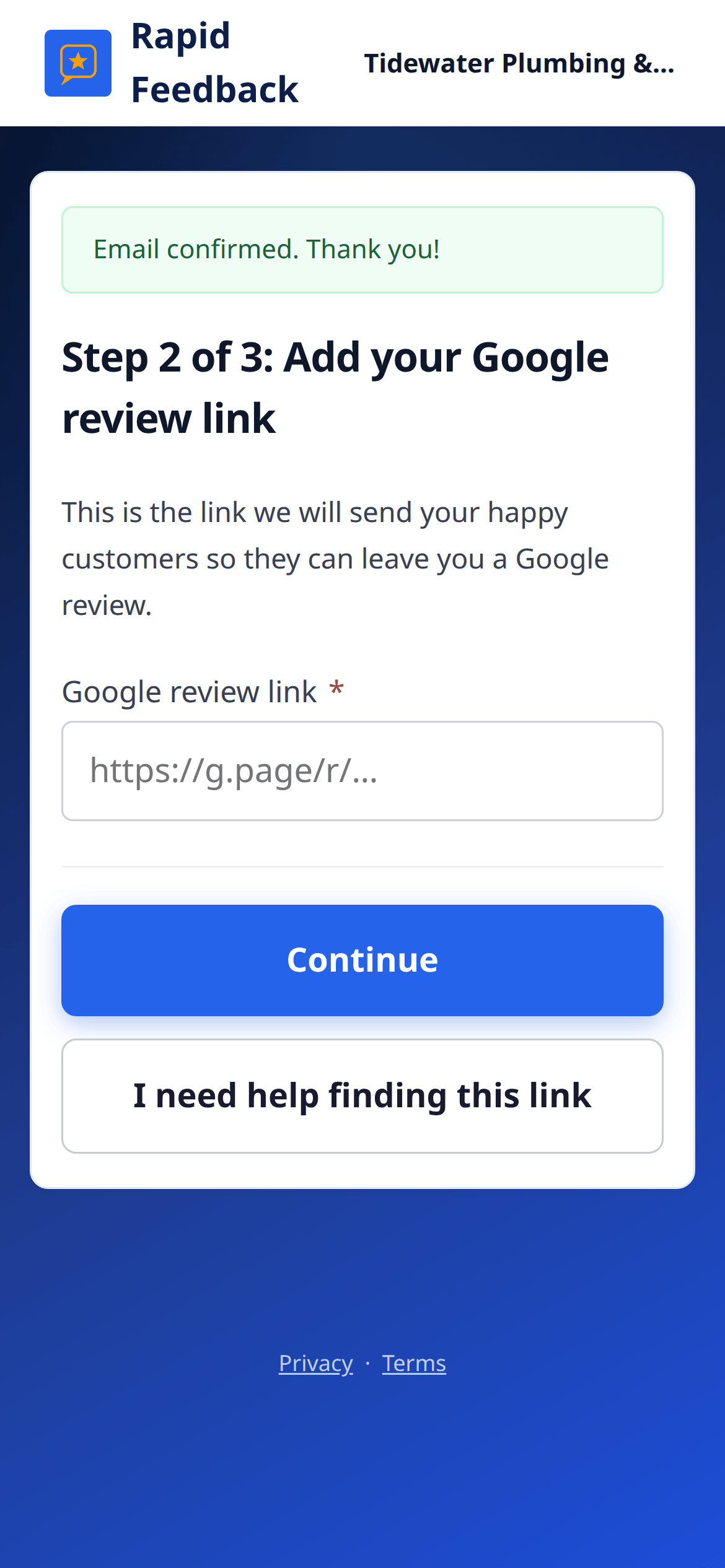
Not sure where to find it? Press I need help finding this link for quick instructions, or follow Find your Google review link, with pictures.
Good to know
Once it's saved, you can't change the Google link yourself. That keeps it from being changed by mistake. If you ever need a new one, email hello@rapidfeedback.net and we'll update it for you.
4. Connect your email
This is the step that lets feedback requests go out from your own inbox. It uses a free service called Make.com, which links Rapid Feedback to your Gmail or Outlook. You set it up once and then forget about it.
Here's the short version. Allow about 10 minutes.
- Create a free account at Make.com and confirm your email.
- Open our ready-made Make.com setup for Gmail or Outlook and press Use this scenario.
- Connect your email account when Make.com asks.
- Create the webhook, name it Rapid Feedback, and copy its address.
- Save the scenario and turn it on.
- Back on Step 3 of 3: Connect your email, paste the address into Your Make.com webhook URL and press Continue.
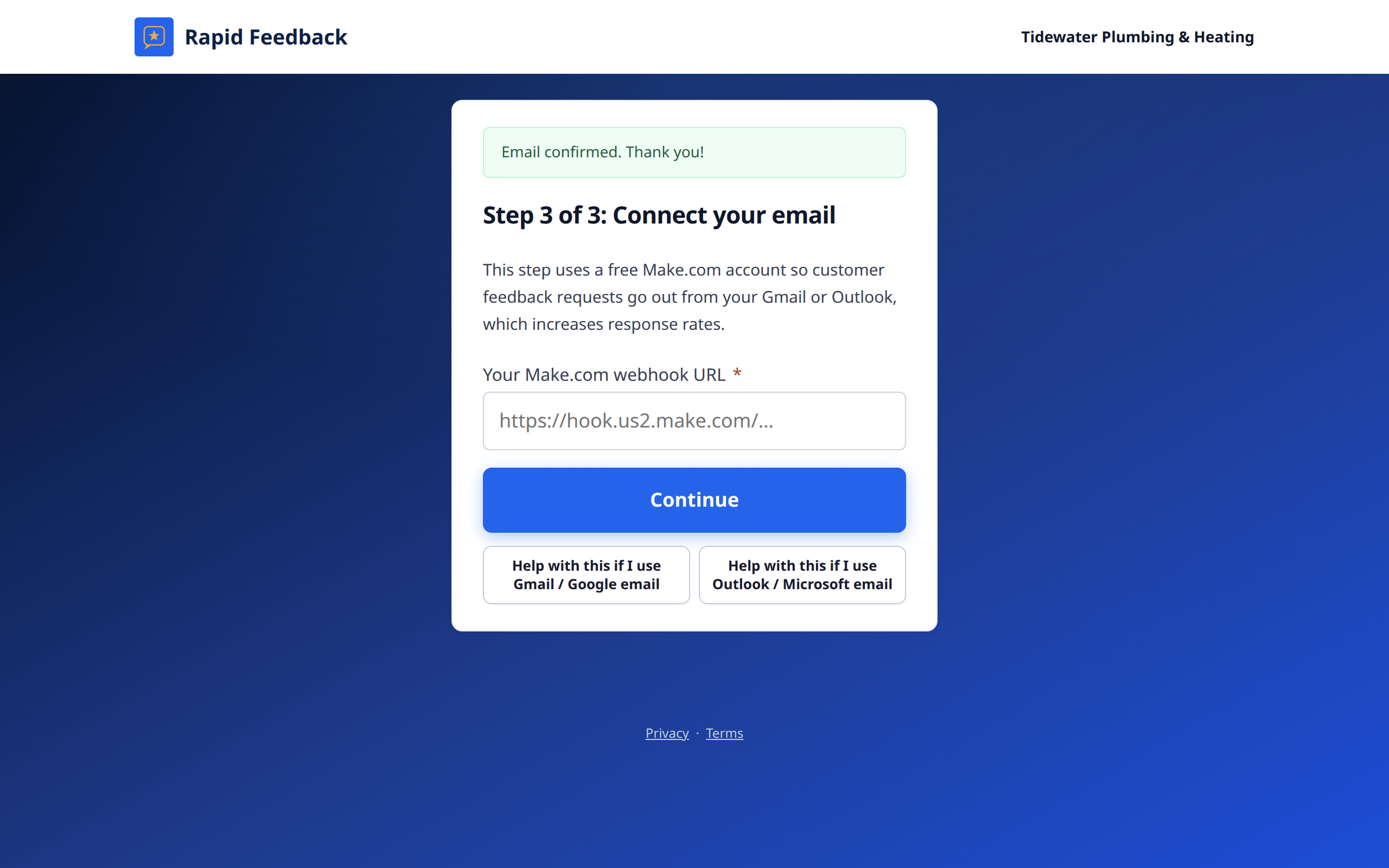
Want every click spelled out? Follow Connect your email, with pictures. The help buttons on Step 3 (Help with this if I use Gmail / Google email and Help with this if I use Outlook / Microsoft email) show the same steps right on the page.
Good to know
A "webhook URL" is just a private address Make.com gives you. When you send a feedback request, Rapid Feedback passes the email to that address, and Make.com sends it from your inbox. You don't have to understand it. You only need to copy and paste it once.
When both steps are done, you'll see You're all set!
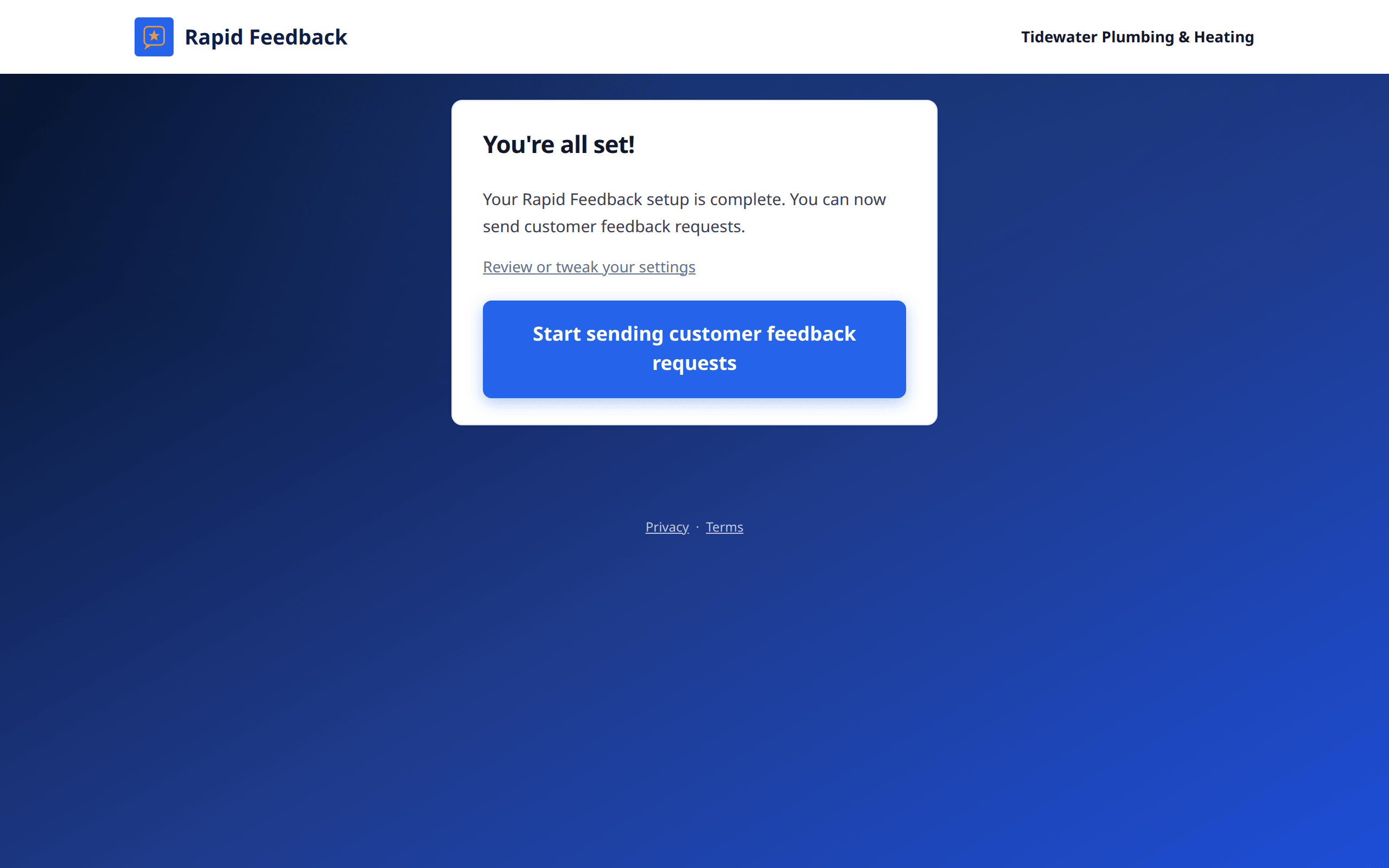
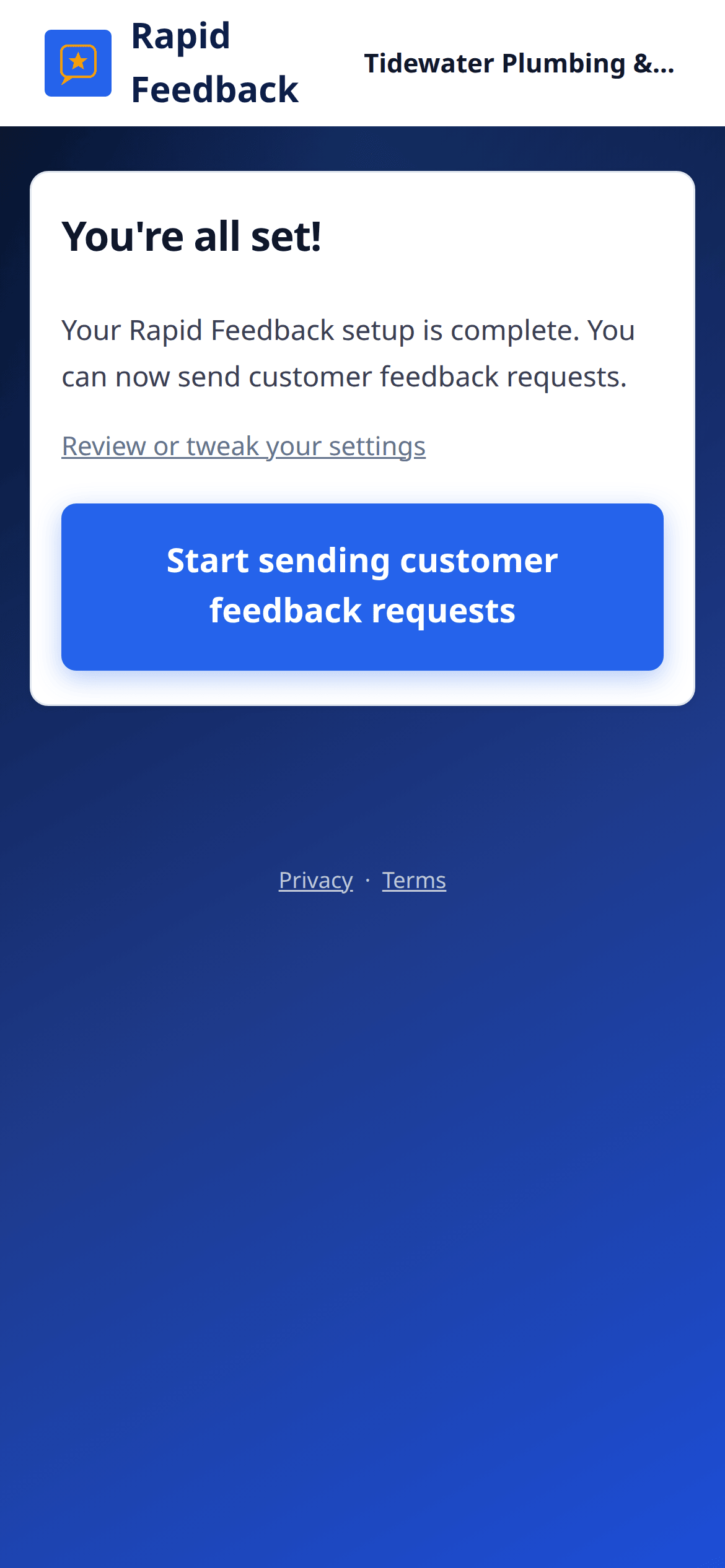
We'll also email you "[your business], your Rapid Feedback page is ready" with the address of your page. Keep that email. It's the easiest way back.
5. Send your first feedback request
Send the first one to yourself
Use your own name and a personal email address. You'll see exactly what your customers see, and you'll know everything is connected.
- Press Start sending customer feedback requests. This is your Rapid Feedback page, the one you'll use every day.
- Fill in Customer first name and Customer email.
- Check the date. It's today unless you change it.
- Optional: say what the work was, like furnace tune-up.
- Press Request Customer Feedback.
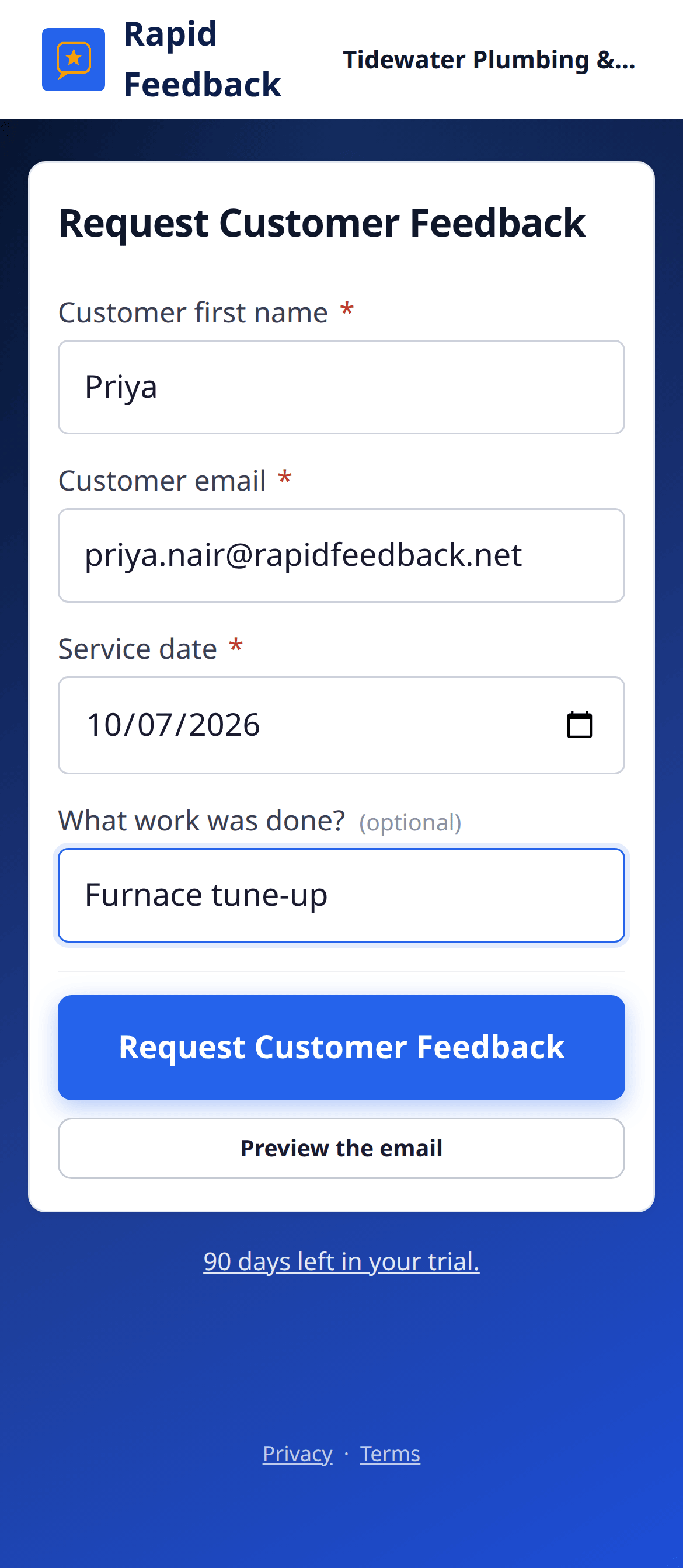
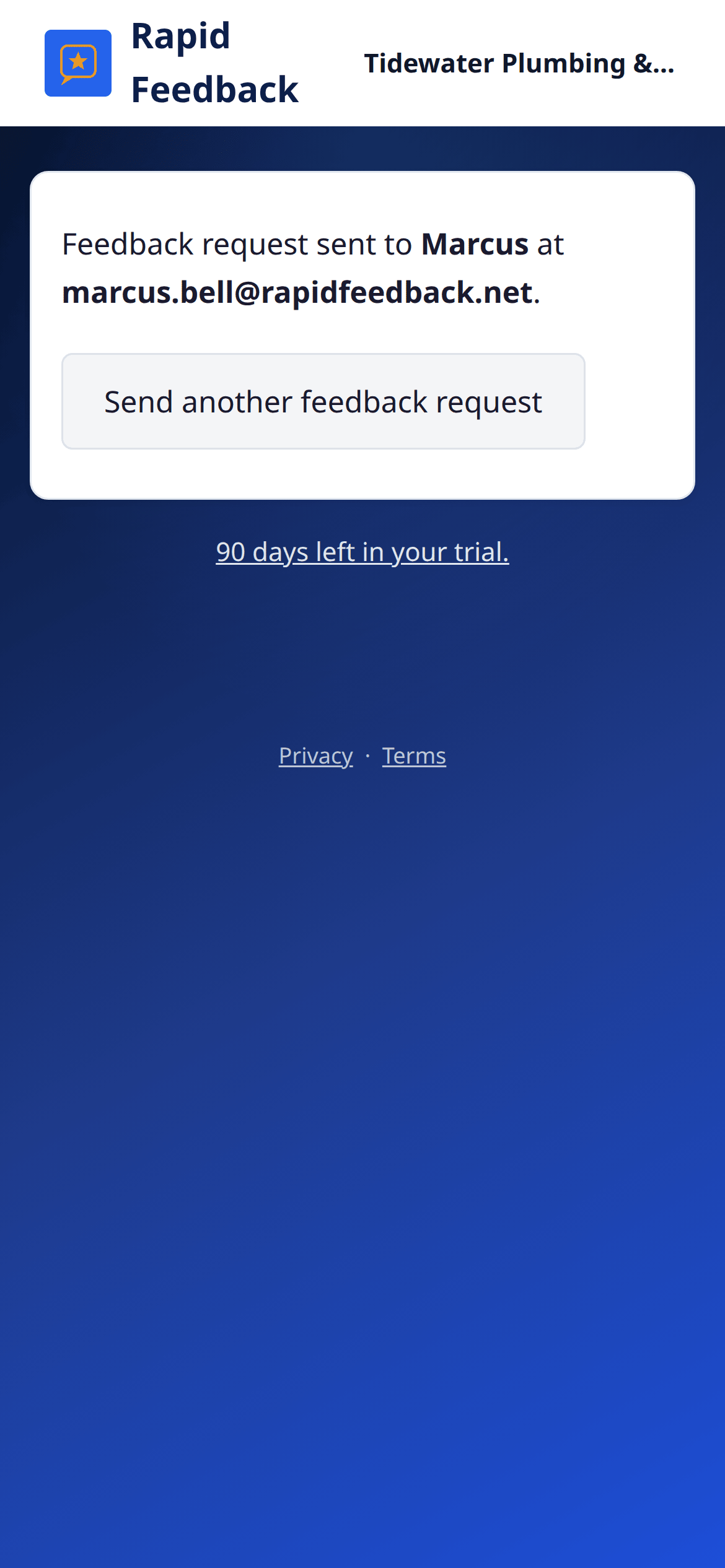
You'll see Feedback request sent to your customer's name and email. That's it.
6. What your customer sees
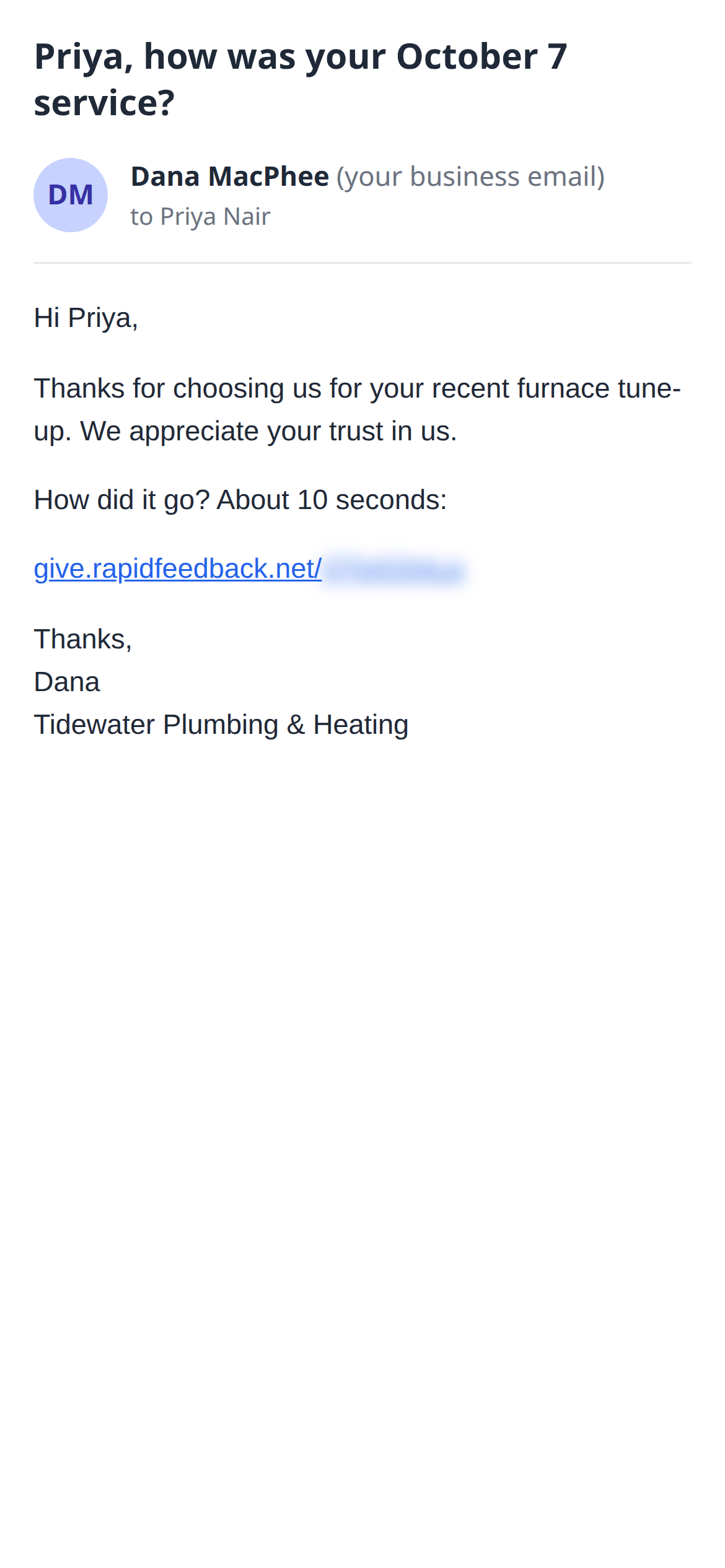
Your customer gets a short email from you, signed with your name. One tap on the link opens a page that asks how it went:
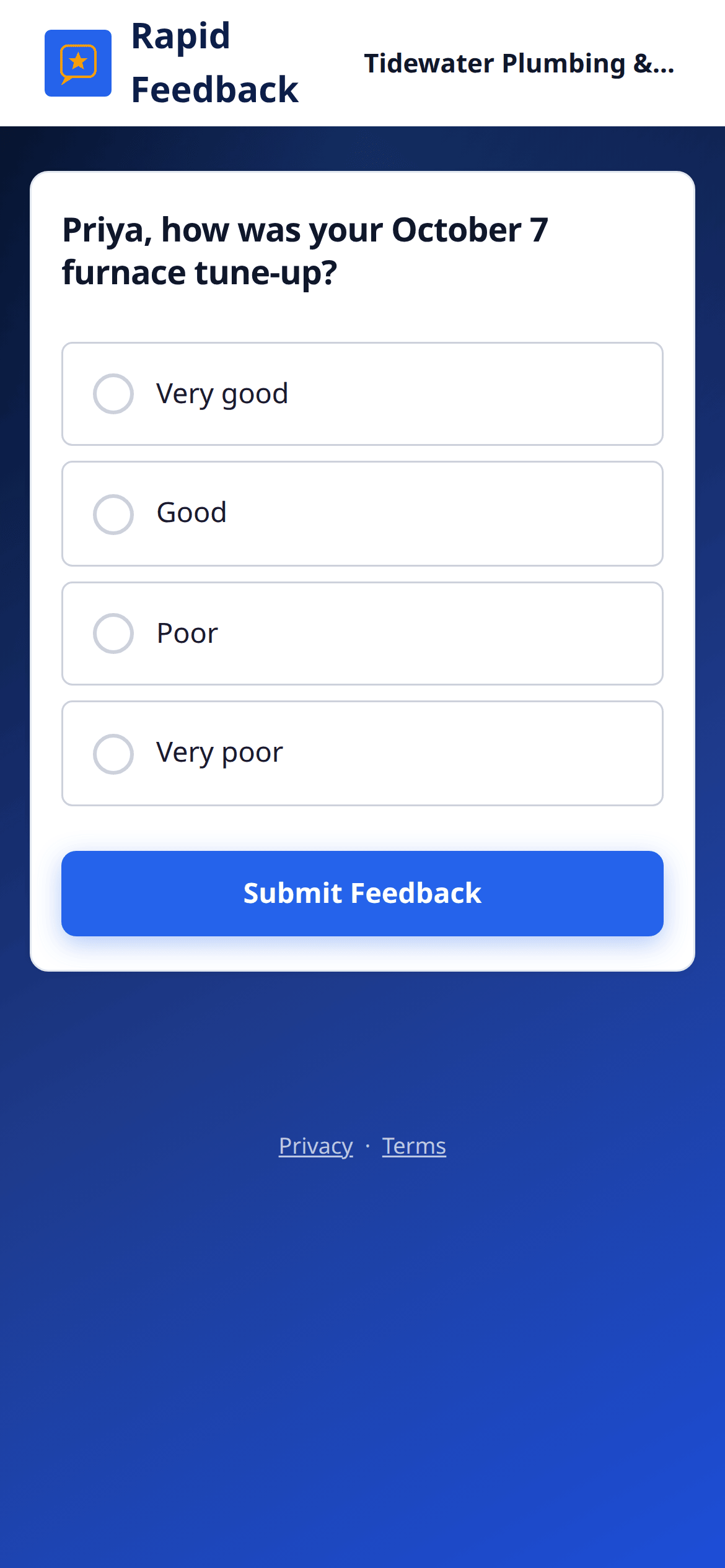
They choose Very good, Good, Poor or Very poor, and press Submit Feedback. Then they can leave you a Google review, or send you a private note, or both. More in What your customers see.
7. What happens next
- If a customer isn't happy, we email you right away. Reply to that email and it goes straight to your customer. See When a customer isn't happy.
- If a customer writes a note, we email it to you.
- Each week you've been busy, you get a short recap with your numbers. See Your weekly recap.
- Save your page to your phone's home screen so it's one tap away. See Using your phone.
- During your trial, we'll send you an occasional tip. You can add a card any time, or not until the end. See Plan and billing.
You're ready. Nice work!