Sending a feedback request
Your Rapid Feedback page has one job: sending a short, friendly feedback request to a customer. It takes about a minute.
Find your page
Your page lives at get.rapidfeedback.net/ followed by your own code. You'll find the link:
- in the email "[your business], your Rapid Feedback page is ready",
- behind the Start sending customer feedback requests button at the end of setup.
Tip
Bookmark it on the office computer and add it to your phone's home screen. Anyone on your team who sends requests can use the same page.
Send a request
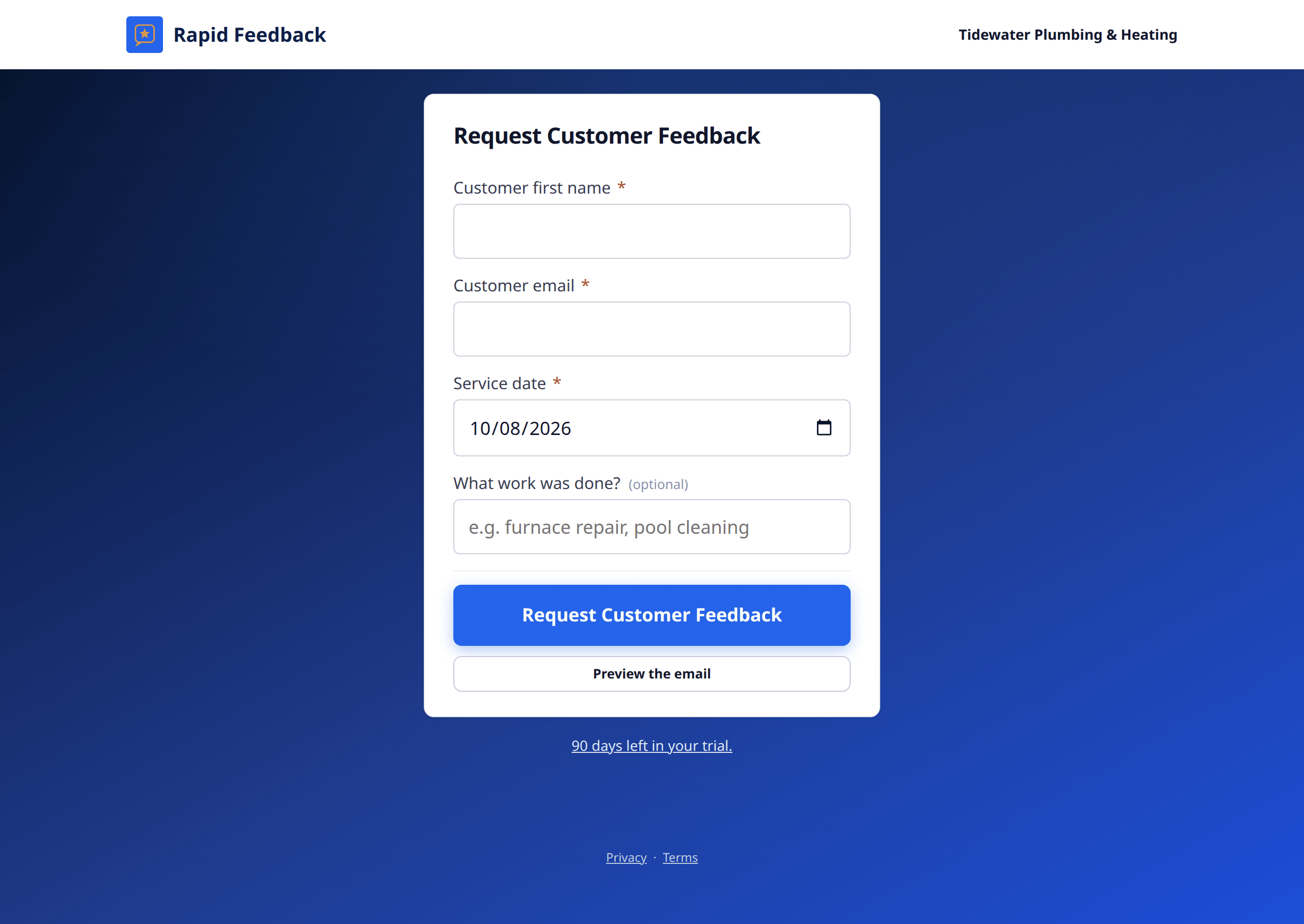
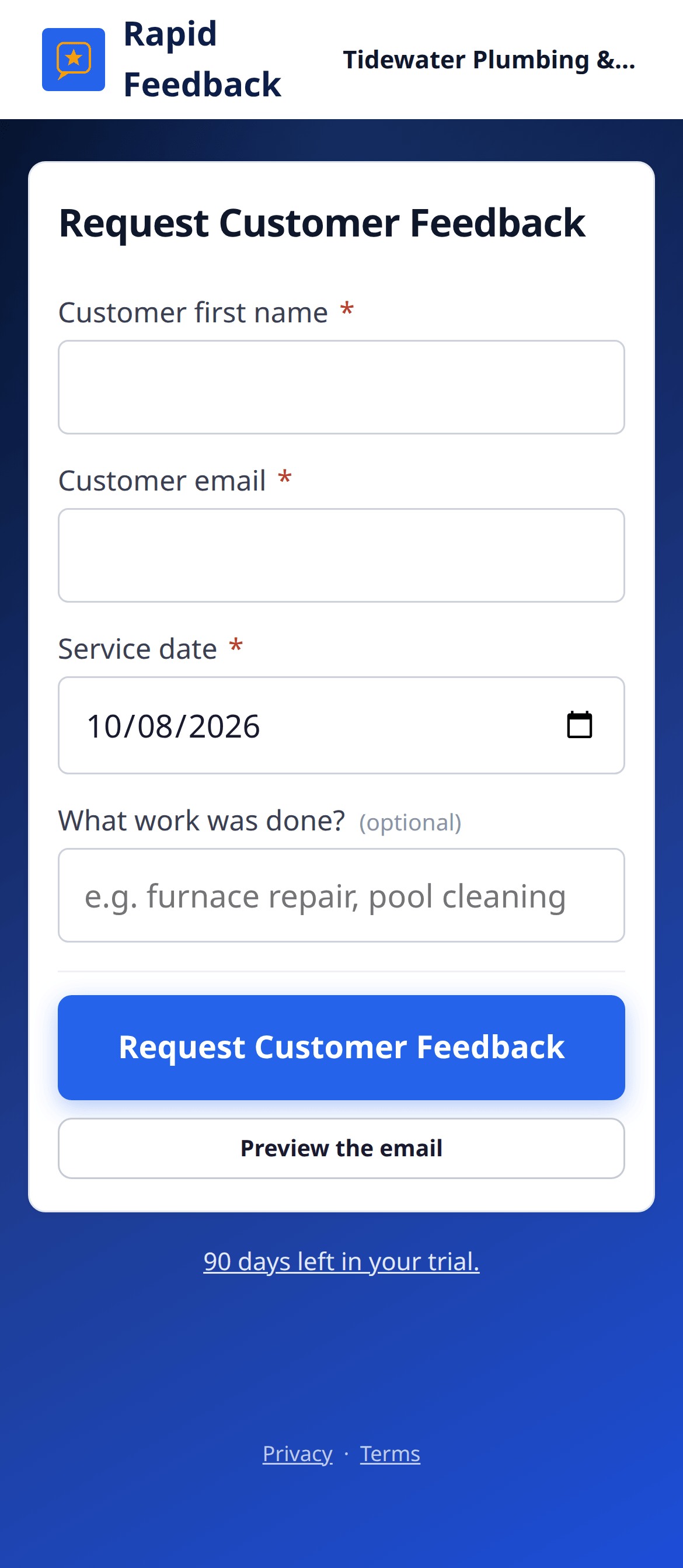
- Type the Customer first name. Just the first name, the way you'd greet them.
- Type the Customer email.
- Check the date (the label says Service date, or the word you chose in Wording, like Appointment date). It starts as today. Change it if the work was earlier. It can't be a future date.
- Optional: fill in What work was done? (or your own wording), like water heater replacement. Short and specific works best.
- Press Request Customer Feedback.
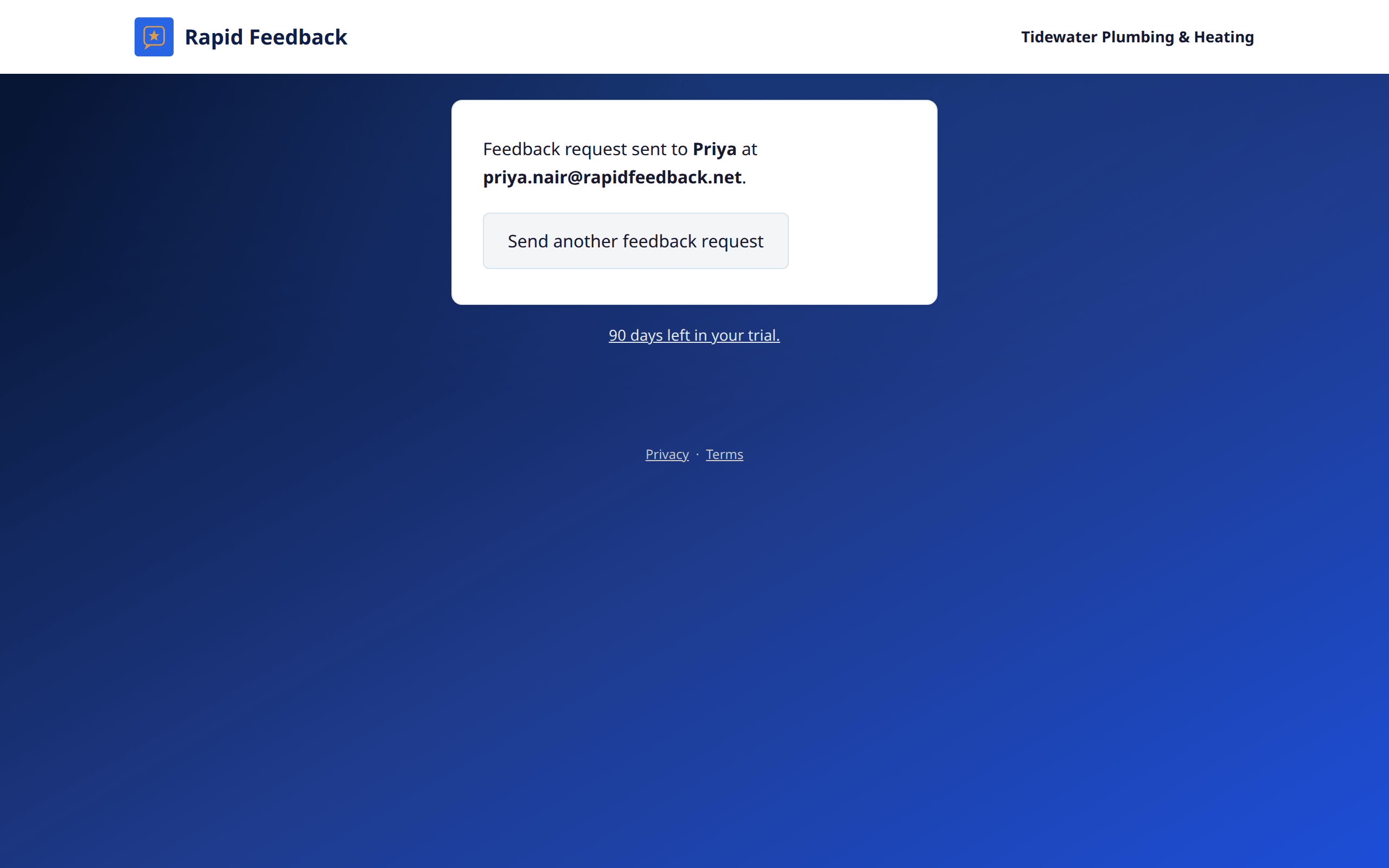
You'll see Feedback request sent to your customer's name and email. Press Send another feedback request for the next one.
What each field is for
| Field | What to type | Why it matters |
|---|---|---|
| Customer first name | Priya | The email and the rating page greet them by name. |
| Customer email | priya@example.com | Where the request goes. Double-check the spelling. |
| Service date | The day of the job | Shown as "your October 7 furnace tune-up", which helps them remember. |
| What work was done? (optional) | furnace tune-up | Makes the email feel personal. If you leave it blank, we use your default description, or simply your word for the work, like "service". |
When to send
The best time is soon after the job, while it's fresh. Many businesses send from the truck before pulling away, or from the office at the end of the day. See Good times to ask for ideas.
Good to know
Ask every customer, not just the ones you think were happy. Hearing from someone who wasn't happy gives you the chance to fix it. See Fair to every customer.
What happens after you press the button
- Rapid Feedback writes the email (you can preview it first).
- Make.com sends it from your Gmail or Outlook. You'll usually find a copy in your Sent folder.
- If you have follow-up reminders turned on and the customer hasn't answered, one gentle reminder goes out a few days later.
- When they answer, you hear back.
If anything goes wrong while sending, you'll see a message right away. See If a request didn't send.