Opening settings
Settings is where you change your business name, your signature, the wording of your emails, and your billing. For safety, you open it with a link we email you.
Your settings address
Settings lives at your page address with /settings on the end:
get.rapidfeedback.net/yourcode/settings
Bookmark it
There's no Settings button on your sending page, so save this address as a bookmark. The quickest way to find it the first time: take your page address from your "your Rapid Feedback page is ready" email and add /settings.
Sign in with an emailed link
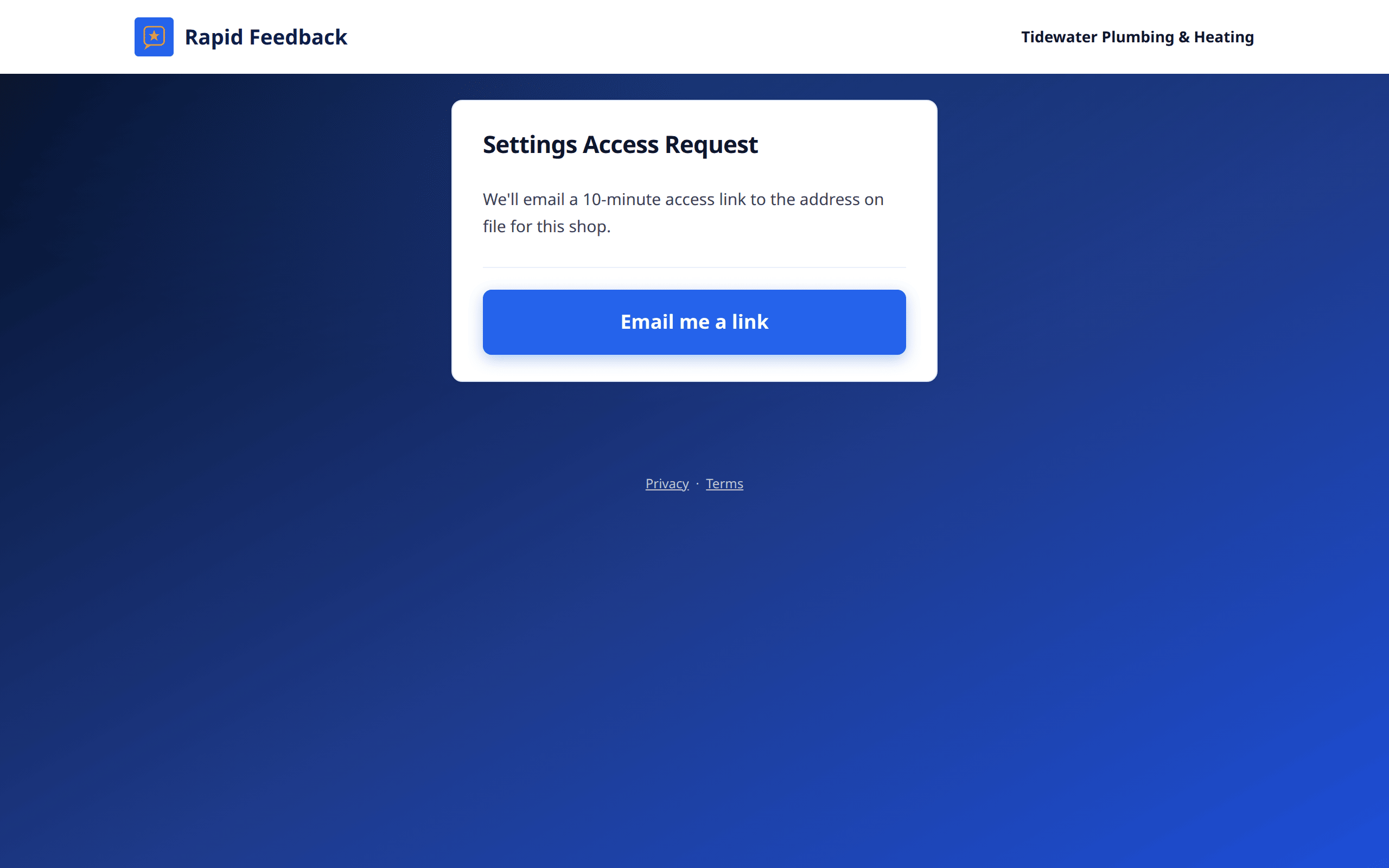
- Open your settings address. You'll see Settings Access Request.
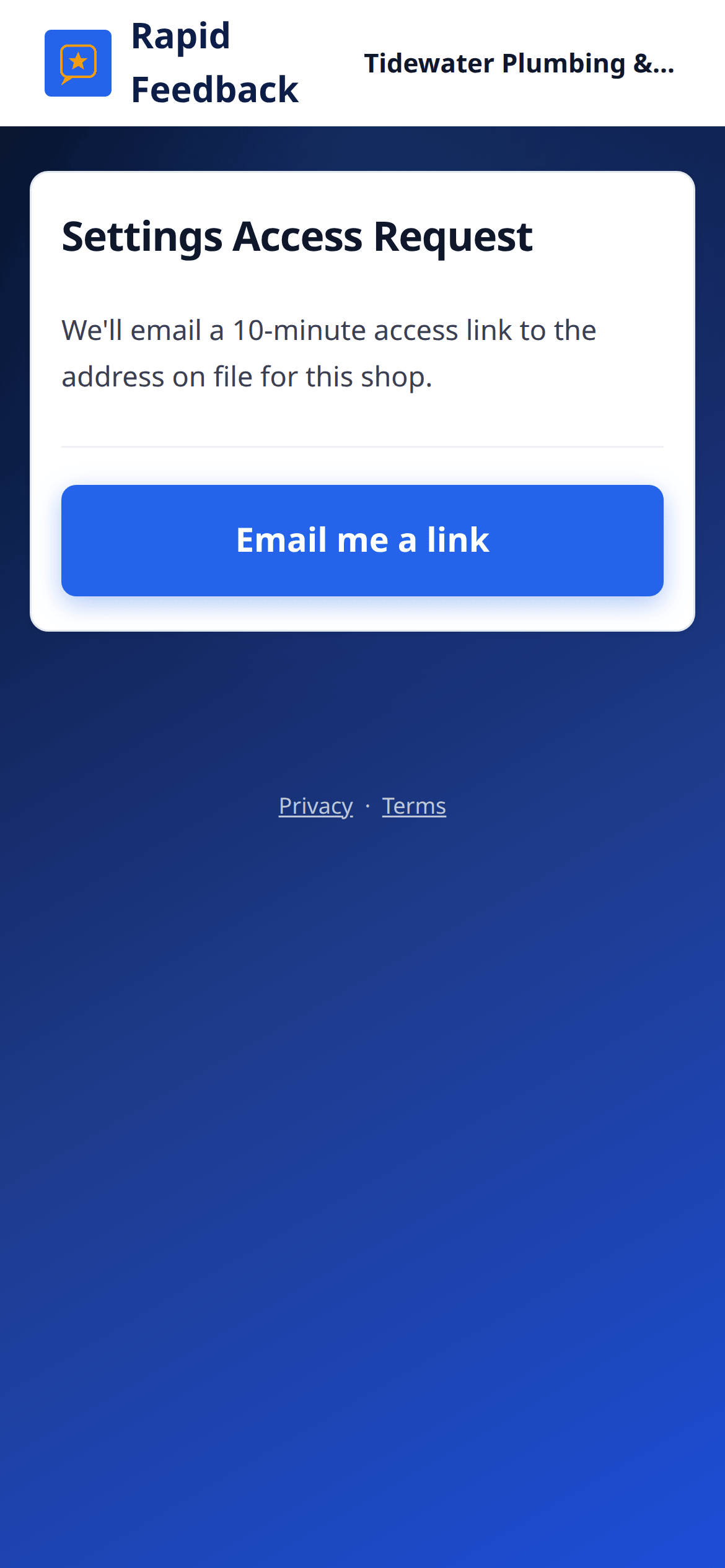
- Press Email me a link. We send a link to the email address on your account.
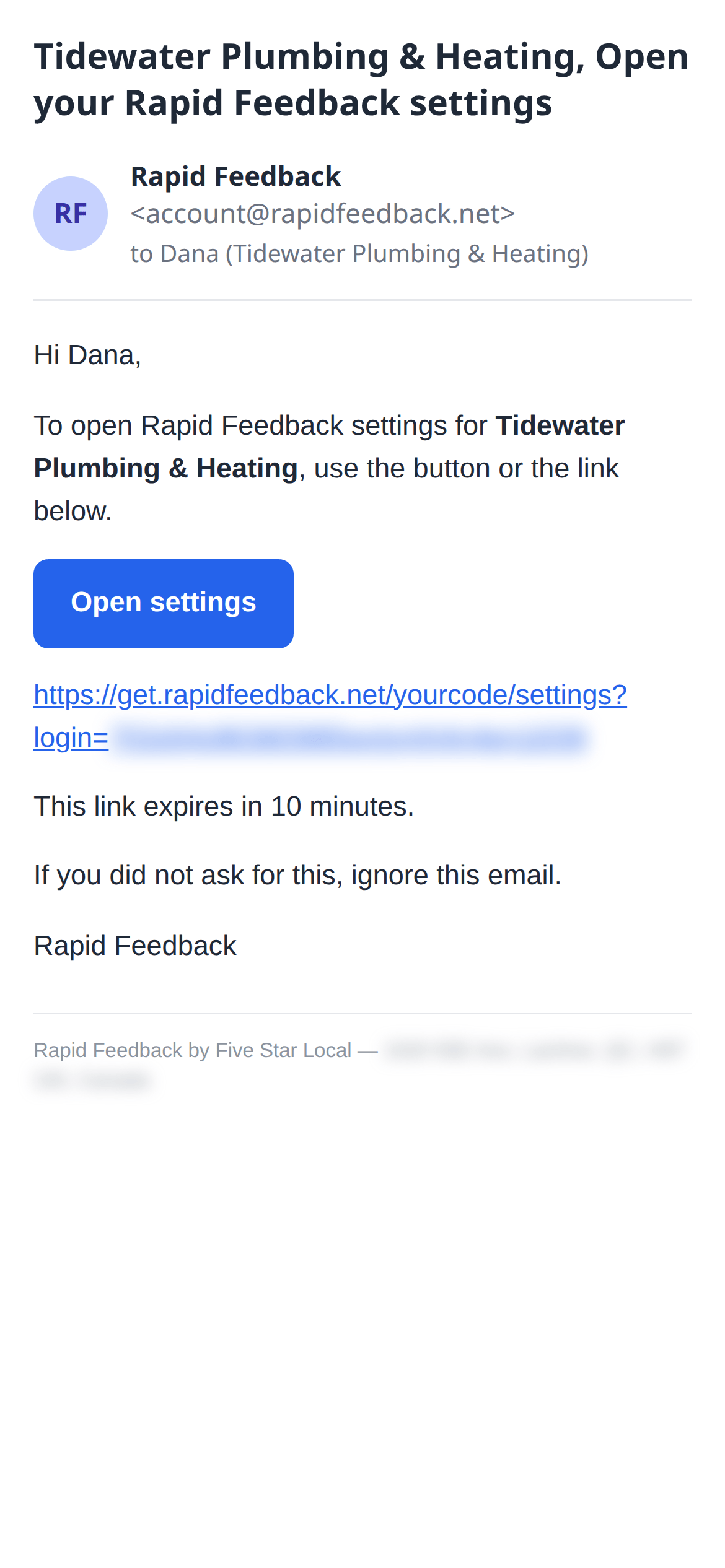
- Open the email "[your business], Open your Rapid Feedback settings" and click the link within 10 minutes.
- You're in. That browser stays signed in to settings for 7 days.
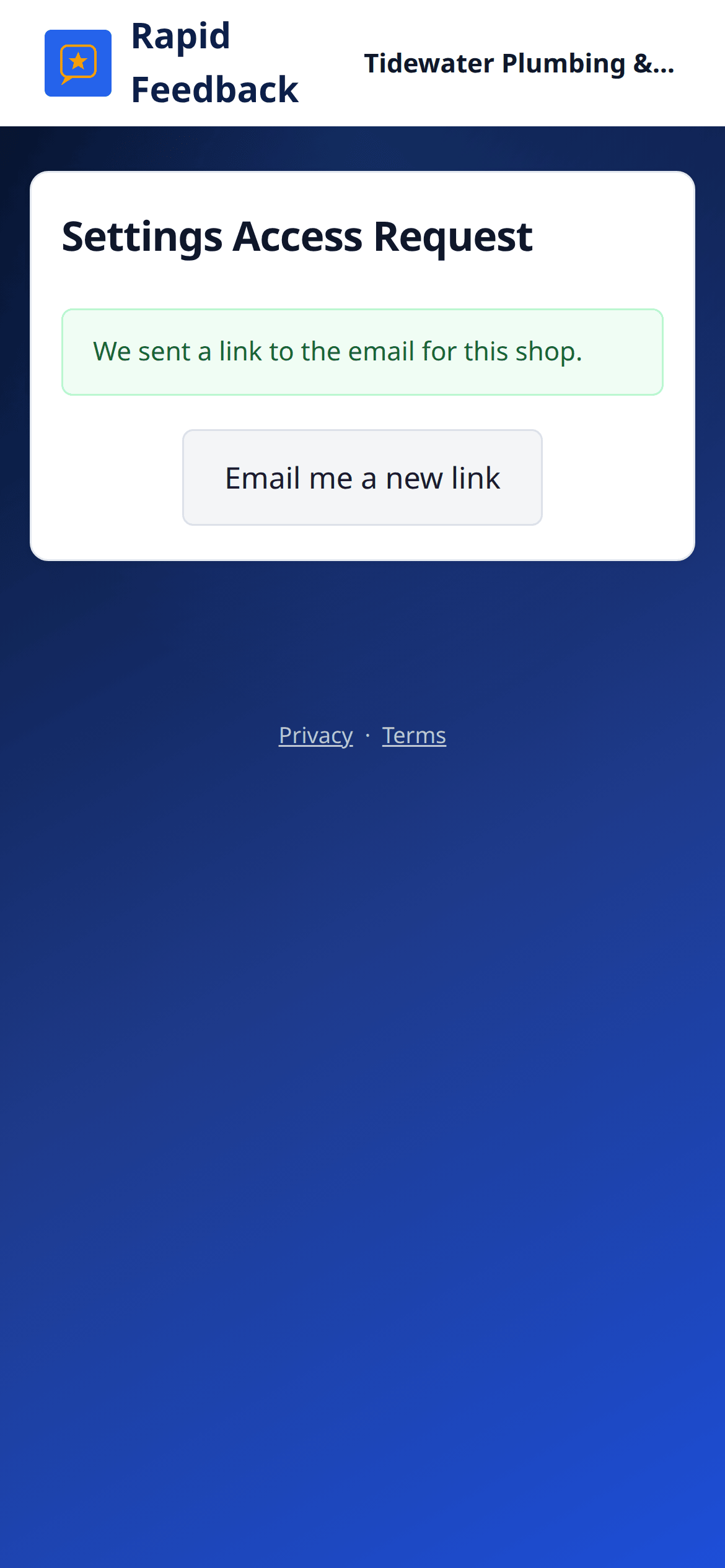
Link too old? Go back and press Email me a new link.
Good to know
Right after setup, the Review or tweak your settings link on the You're all set! screen takes you straight in, no email needed.
The four tabs
| Tab | What's there |
|---|---|
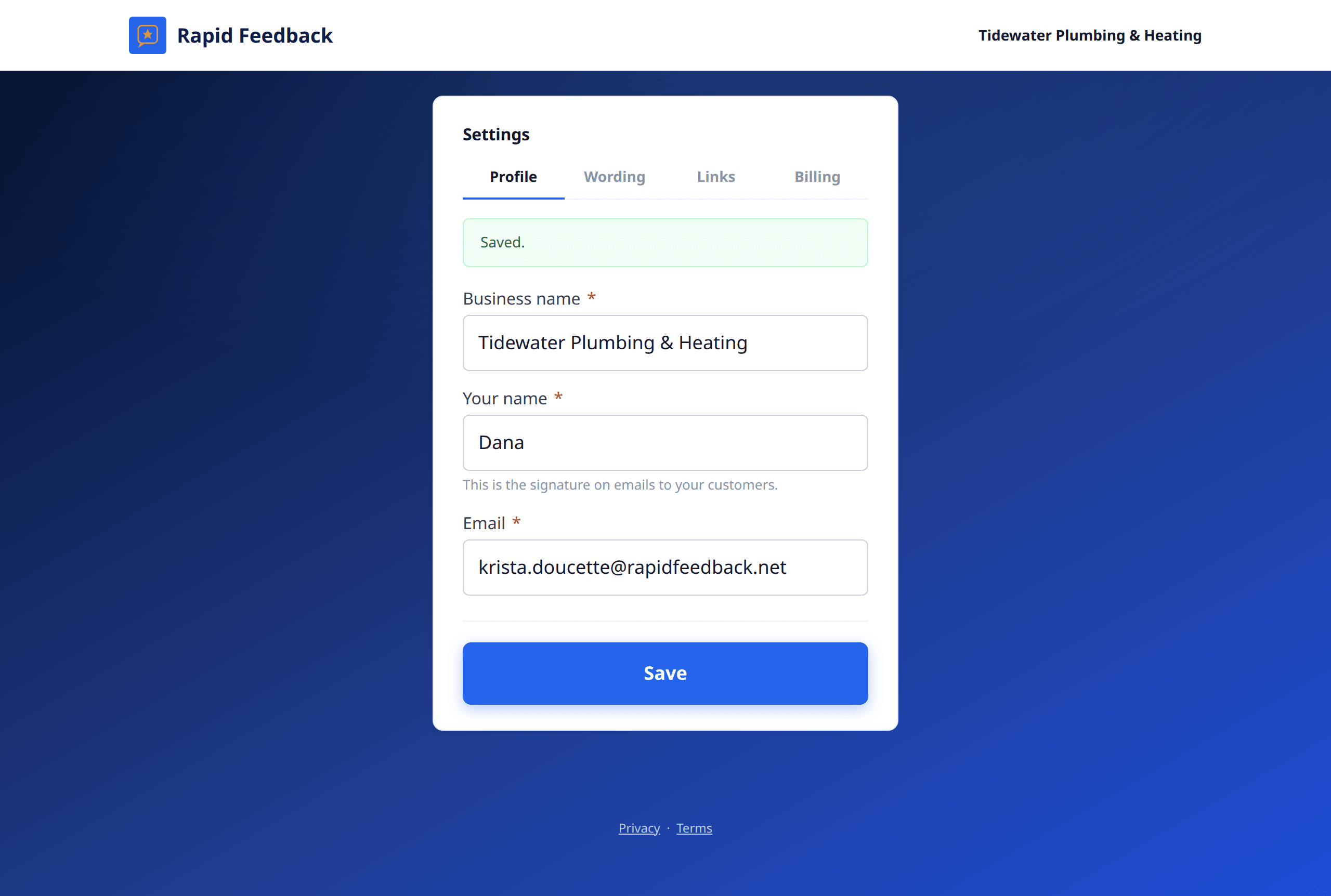
| Profile | Business name, your name (your signature), your email |
| Wording | What you call your work, a default description, the thank-you line, follow-up reminders |
| Links | Your Google review link (view only) and your Make.com connection |
| Billing | Your trial, your card, and managing billing |
Make your changes and press Save. You'll see Saved. at the top. The Billing tab has its own buttons and no Save.
Having trouble getting in? See Sign-in problems.